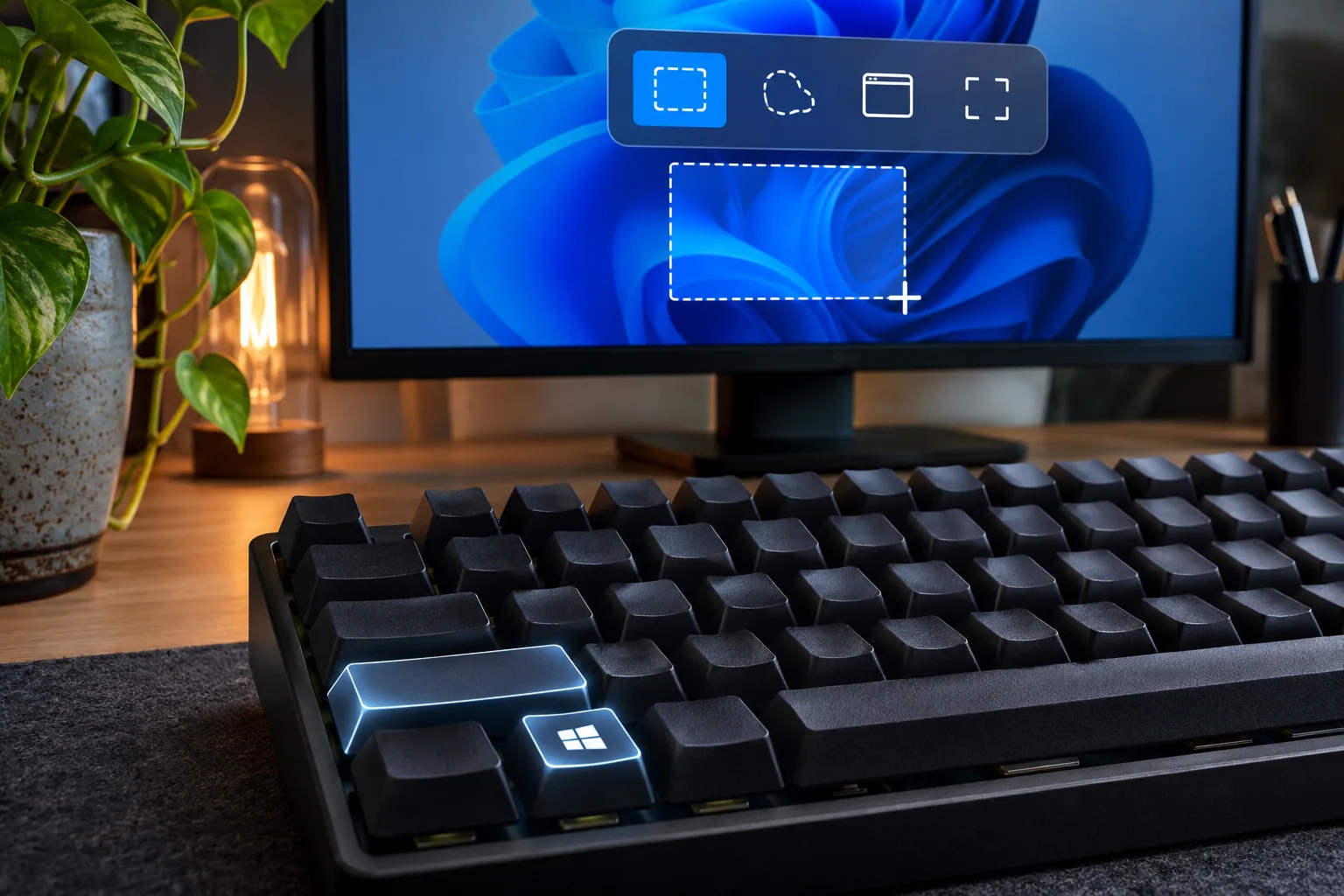
There I was, aboard the high-speed train cutting through the countryside, tethering my laptop to a notoriously choppy mobile hotspot. An urgent email from the New York finance executive just hit my inbox: the client’s production deployment report contained a critical UI glitch, and they needed visual proof immediately. I instinctively pressed Win + Shift + S to capture the exact error window.
Nothing happened.
I tried it again. Still nothing. No overlay appeared, and the deadline seemed to get closer with every second. I opened the Start menu and searched for Snipping Tool, hoping I could capture the error another way before sending the report.
If your Win + Shift + S shortcut is not responding, first check whether the Snipping Tool opens directly. That helps separate an app problem from a shortcut or preview-notification problem; no single step is guaranteed to fix every case.

1. What may be happening
The symptom alone does not identify a cause. The Snipping Tool may be unresponsive, the Windows key may be locked on the keyboard, or the capture may work while its preview notification is hidden.
App not responding: If Snipping Tool is frozen or will not open, check the app itself before changing system settings.
Preview notification not visible: Notifications can affect whether the capture preview appears. This is different from the Win + Shift + S overlay not opening.
Keyboard or device policy: A keyboard Win-lock feature or a work-device policy may affect shortcut use. Check the keyboard instructions or ask workplace IT instead of disabling security controls.
2. Check the app and a safe alternative
Try these checks in order. Save other open work before ending an app process.
Step 1: Check the app in Task Manager First, check whether the tool itself is unresponsive.
- Press Ctrl + Shift + Esc to open Task Manager.
- In the Processes tab, scroll down or search for Snipping Tool (or Screen Sketch).
- If the Snipping Tool is not responding, you can select it and choose End task. Save any other open work first; avoid ending unrelated processes. Then try the shortcut again.
Step 2: Repair the Snipping Tool in Settings If restarting the app did not work, use Windows’ built-in app repair options. Reset can return the app to its default state, so review the prompt before confirming.
- Open Settings by pressing Win + I.
- Navigate to Apps > Installed apps.
- Type “Snipping Tool” into the search bar.
- Click the three dots (…) next to Snipping Tool and select Advanced options.
- Scroll down and click Repair, if available. If the issue continues, you can consider Reset; read the prompt first because it may clear app settings or local app data.
Step 3: Check alternatives and updates
- Open Snipping Tool from Start and select New to see whether manual capture works.
- Under Settings > Accessibility > Keyboard, choose whether PrtScn opens screen snipping. This setting controls PrtScn; it does not turn Win + Shift + S on or off.
- If the app still will not open, check its updates in Microsoft Store and review Windows Update.
If the whole taskbar is frozen and you cannot open the Snipping Tool settings, see how to safely restore a frozen Windows 11 taskbar.
On a managed work PC
If screen capture is restricted by your organization, do not disable or bypass its security settings. Ask IT whether the restriction is intentional. If your keyboard has a Win-lock or gaming-mode switch, check its indicator and the maker’s instructions.
For the official steps, see Microsoft’s Snipping Tool guide and app repair and reset guidance.
5. Frequently asked questions
Q: What should I do if Win + Shift + S still does not work after trying all these steps?
A: Check whether the Windows key works in another shortcut and whether another app is intercepting the key combination. If the issue appears limited to your account, ask an administrator or Microsoft Support before changing the user profile or registry.
Q: Is there an alternative shortcut if I need to take screenshots immediately during an emergency?
A: Yes. Under Settings > Accessibility > Keyboard, you can choose whether the PrtScn key opens screen snipping. This is an alternative key setting; it does not enable or disable Win + Shift + S.
Q: Can corporate Group Policies block the Snipping Tool shortcut?
A: An organization can manage whether screen capture is available on a work device. If you suspect a policy restriction, ask your IT helpdesk rather than changing security controls yourself.
| Check | Where | What it tells you |
|---|---|---|
| App opens directly | Start menu > Snipping Tool | Whether the app itself responds |
| Repair option | Settings > Apps > Installed apps > Advanced options | Whether Windows offers app repair |
| Alternative capture | Settings > Accessibility > Keyboard | Whether PrtScn can open screen snipping |
At a glance
A hidden preview notification is different from a shortcut that does not open.
Check the app first, then repair it and try PrtScn as a separate option.