The Slack notifications were blowing up my second monitor, our product release sync was starting in exactly four minutes, and my mouse suddenly refused to register a single click on the Windows 11 taskbar. Clicking the Start menu did nothing, the system tray icons were completely unresponsive, and switching between my open IDE windows felt like trying to drive a car with square wheels. When you are sitting in a fast-paced Silicon Valley tech firm trying to push a pre-release build, a frozen taskbar isn’t just an annoyance—it is an absolute workflow emergency.
We have all been there. You mash the Windows key, you frantically click around the clock and Wi-Fi icons, and nothing moves. Instead of panic-rebooting your entire machine and losing your open dev environments, let’s walk through why this happens and how to fix it in under two minutes using native tools.
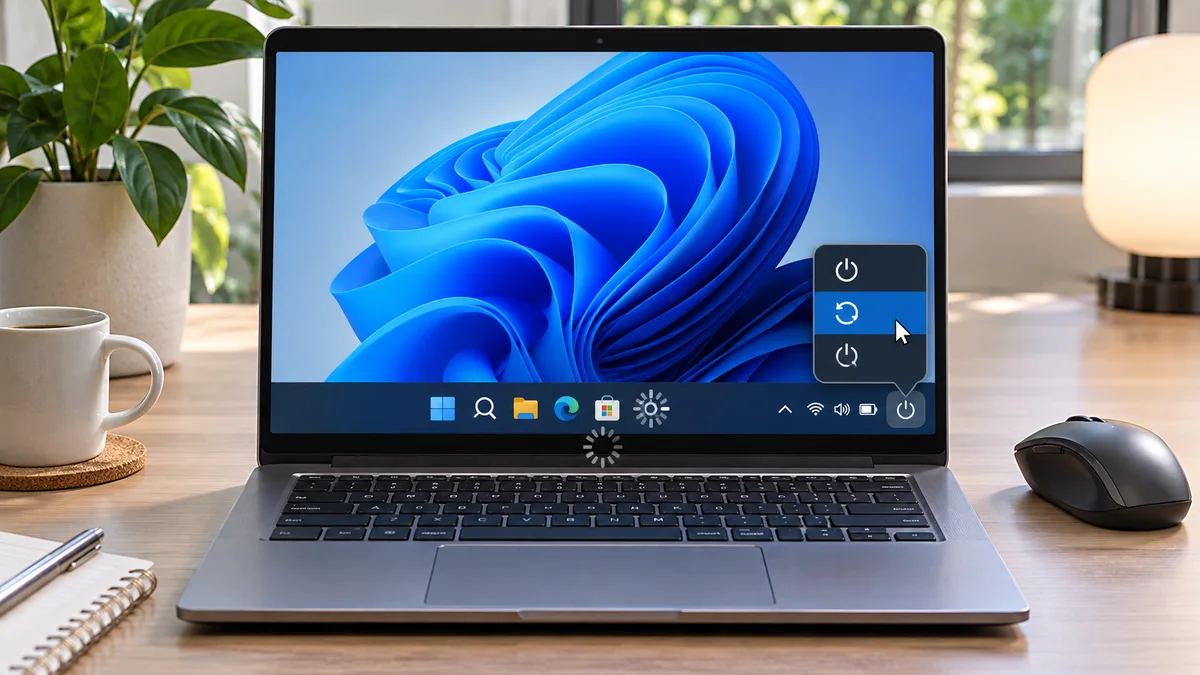
Ctrl + Shift + Esc will open Task Manager directly, bypassing a frozen taskbar entirely.Why Your Windows 11 Taskbar Freezes
Several issues can make the taskbar stop responding. Explorer, a recent update, or a recently installed shell extension may be involved; the symptom alone does not identify the cause.
- Explorer stops responding: If Explorer is unresponsive, parts of the desktop shell, including the taskbar, may stop updating.
- A recent update: If the issue began after an update, check Windows Update and restart Windows normally when you can save your work.
- A customization tool or shell extension: Review tools installed shortly before the problem began, especially taskbar customization software.
Safely restore the taskbar
- Press
Ctrl + Shift + Escto open Task Manager. If that does not work, pressCtrl + Alt + Deleteand choose Task Manager from the security screen. - In the Processes list, select Windows Explorer and choose Restart. The desktop and taskbar may briefly redraw.
- If the taskbar remains frozen, save any open work and restart Windows normally. Consider a forced power-off only if the PC is completely unresponsive and other options fail.
- If the issue returns, check Windows Update and review recently installed taskbar customization tools or shell extensions. If system file corruption is suspected, run
DISM.exe /Online /Cleanup-Image /RestoreHealthin an elevated terminal first; after it completes, runsfc /scannow.
Do not re-register every AppX package or run commands from unverified sources to fix the taskbar. If a command reports an error, keep the result and seek support rather than repeating it blindly.
If the taskbar responds but only the screenshot shortcut fails, see how to troubleshoot the Windows 11 Snipping Tool shortcut.
| Check | Action | Caution |
|---|---|---|
| 1 | Restart Windows Explorer from Task Manager | The desktop may briefly redraw |
| 2 | Save open work and restart Windows normally | Force shutdown is a last resort for a fully unresponsive PC |
| 3 | If it recurs, check updates and recent customization tools | Run DISM, then SFC only when system-file corruption is suspected |
Safety notes and FAQ
Restarting Explorer reloads the desktop shell; it does not fix every cause. Save your work before proceeding, and do not repeatedly hold the power button while Windows is still responding.
What if Task Manager will not open? Press Ctrl + Alt + Delete and select Task Manager from the security screen. If that screen also stops responding, check whether other keyboard input works and wait; use the power button only as a last resort when the PC is fully unresponsive.
Should I re-register all Windows app packages in PowerShell? No. A blanket package re-registration is not a recommended taskbar repair. If a particular app is causing the issue, follow Microsoft’s repair guidance for that app.
What should I check if the taskbar freezes again? Review recent Windows updates, graphics drivers, and taskbar customization tools. On a managed work PC, ask IT before changing settings that could be controlled by policy.
At a glance
If the Windows taskbar freezes, restart Explorer first and save work before restarting Windows normally.
For recurring failures, check updates and recent customization tools; avoid broad PowerShell resets.