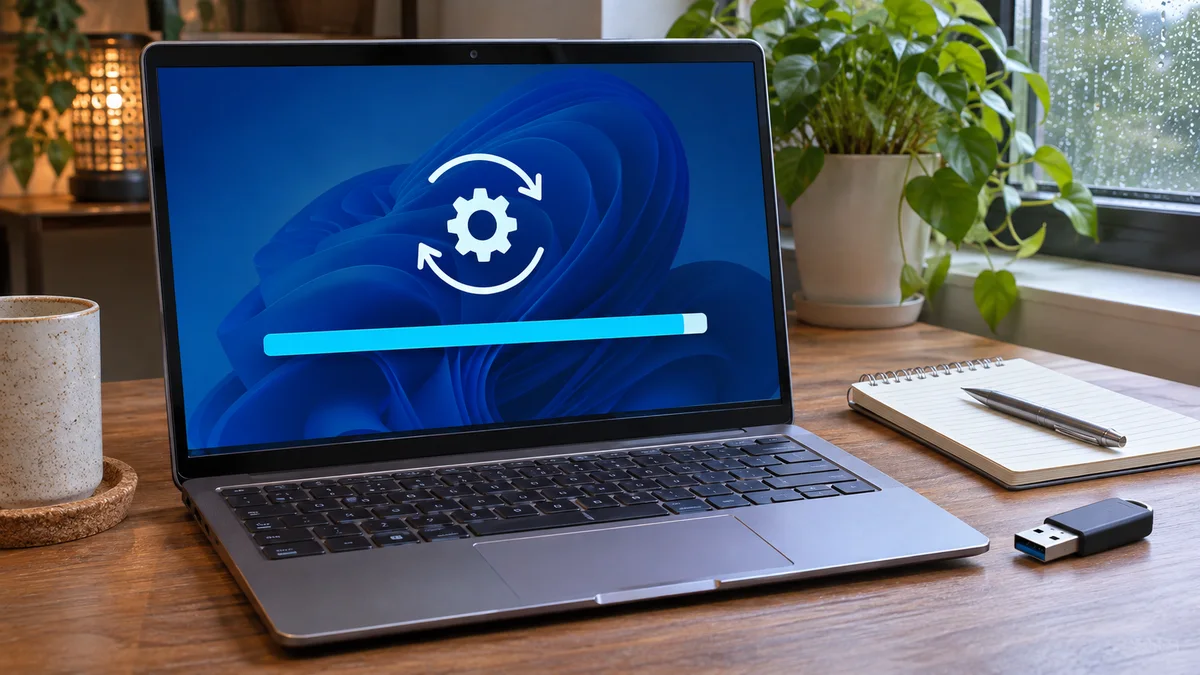
The Slack workspace for our Mountain View office engineering team was blowing up right before our quarterly release sync. My machine decided it was the absolute best moment to install a cumulative Windows 11 update, and of course, it completely froze at 100 percent. The status bar had been mocking me for over 45 minutes, the fan was spinning at jet-engine speeds, and my presentation deck was trapped behind a non-responsive lock screen. Hard-rebooting during a finalizing state is a gamble nobody wants to take, but staring at an immobile progress ring while executives wait on a Google Meet call forces your hand.
Why Your Windows 11 Update Gets Stuck at 100 Percent
A 100 percent indicator does not identify the cause by itself. The update may still be working in the background, or it may have encountered an error. Check its status and error code before changing system folders.
Possible causes include a cache or service problem, low free space, or another update error. These signs do not prove which one is responsible:
- Update cache: Windows uses SoftwareDistribution for temporary update data. A cache issue is one possible cause, but it does not explain every update pause.
- Update services: A service may report an error or fail to complete an operation. Check the displayed error and update history rather than assuming a registry deadlock.
- Other update conditions: Low free space or concurrent system work can also delay completion.
Step-by-Step Resolution: Clearing the Update Cache
First try the Windows Update troubleshooter and restart the PC. If the issue continues and you are comfortable with command-line administration, Microsoft documents a cache-reset procedure. On a managed work device, check with your IT administrator.
Step 1: Terminate Active Update Services via Terminal
Hit your Windows key, type Terminal or Command Prompt, right-click it, and select Run as administrator. We need to halt the services responsible for managing update packages so we can modify their working directory.
Run these commands one by one:
net stop wuauserv
net stop bits
Step 2: Clear the SoftwareDistribution and Catroot2 Folders Once the services are stopped, navigate to the system directories where Windows stores temporary update data. You can do this quickly by opening the Run dialog (Win + R) or straight from your terminal.
Instead of deleting folder contents manually, rename the folders with Microsoft’s documented commands. Run each command in an elevated terminal:
ren %systemroot%\SoftwareDistribution SoftwareDistribution.bak
ren %systemroot%\system32\catroot2 catroot2.baksvchost.exe. It can host many unrelated Windows services, and force-ending it may disrupt the system or cause data loss. If the update services will not stop, cancel the cleanup and use the Windows Update troubleshooter or ask an administrator for help.Step 3: Restart Services and Re-trigger Windows Update After renaming the folders, restart the services and reboot. Then check Update history and retry. A cache reset does not guarantee a fix.
Back in your admin terminal, run:
net start wuauserv
net start bits
Reboot your machine normally, head back into Settings > Windows Update, and hit Check for updates. Windows will re-verify the system state and breeze past that 100 percent mark in a fraction of the time.
Expert Warning & Best Practices
When dealing with low-level OS components, a few precautions will save you from a full system re-image:
- Avoid unverified cleanup tools: Do not use third-party tools or disable security controls to change system folders, especially on a managed work device.
- Run DISM Before Re-trying: If a fresh cache download still hangs, run
DISM.exe /Online /Cleanup-image /Restorehealthfollowed bysfc /scannowin your admin terminal to repair the underlying system image before attempting the update again.
| Check | Suggested action | Caution |
|---|---|---|
| Update still progressing | Wait and monitor its status | A percentage alone does not prove a freeze |
| An error code appears | Check Update history | Follow the guidance for that code |
| Cache reset is appropriate | Stop services and rename the folders | Use an elevated terminal and follow work-device policy |
Frequently Asked Questions
Is it safe to reset the SoftwareDistribution folder? Microsoft documents renaming these cache folders as an advanced troubleshooting step. It may help in some cases, but it does not guarantee that an update will succeed; check the update history if the error returns.
What if an update service will not stop? Do not force-end a generic Service Host process. Wait for the current update operation to finish if it is progressing. If Windows Update remains stuck, use the Windows Update troubleshooter or contact an administrator before changing update-cache folders.
Why does this specific 100 percent freeze happen so often on Windows 11? There is no single cause for every update pause. Check the error code and Update history; use the cache reset only when the documented steps fit the problem.
At a glance A 100 percent display alone does not identify the cause or prove the update is frozen. Check the error and try the documented cache reset only when appropriate.