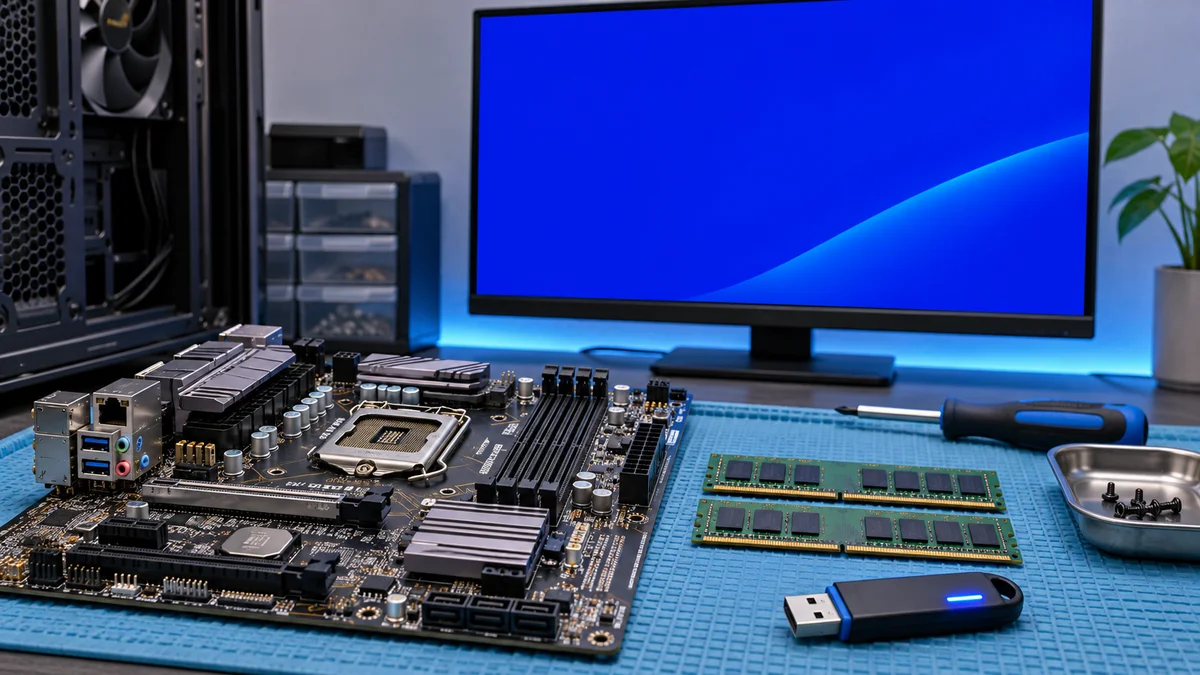
Start with recent changes and built-in diagnostics; save important work and use hardware or recovery steps only with the device maker's guidance.
It was 4:50 PM on a Thursday at our Palo Alto office. We were twenty minutes away from locking down the release candidate build for our enterprise client sync, and my workstation decided to throw a magnificent, terrifying shade of royal blue. The text stared back at me with unyielding coldness: IRQL_NOT_LESS_OR_EQUAL paired with the dreaded stop code 0x0000000a. Slack was blowing up with product managers asking for the final artifact, and my heart rate spiked directly into the red zone. Rebooting only brought it right back within three minutes of loading the desktop. Panic wasn’t going to fix this deployment, but a systematic, engineering-first approach would.
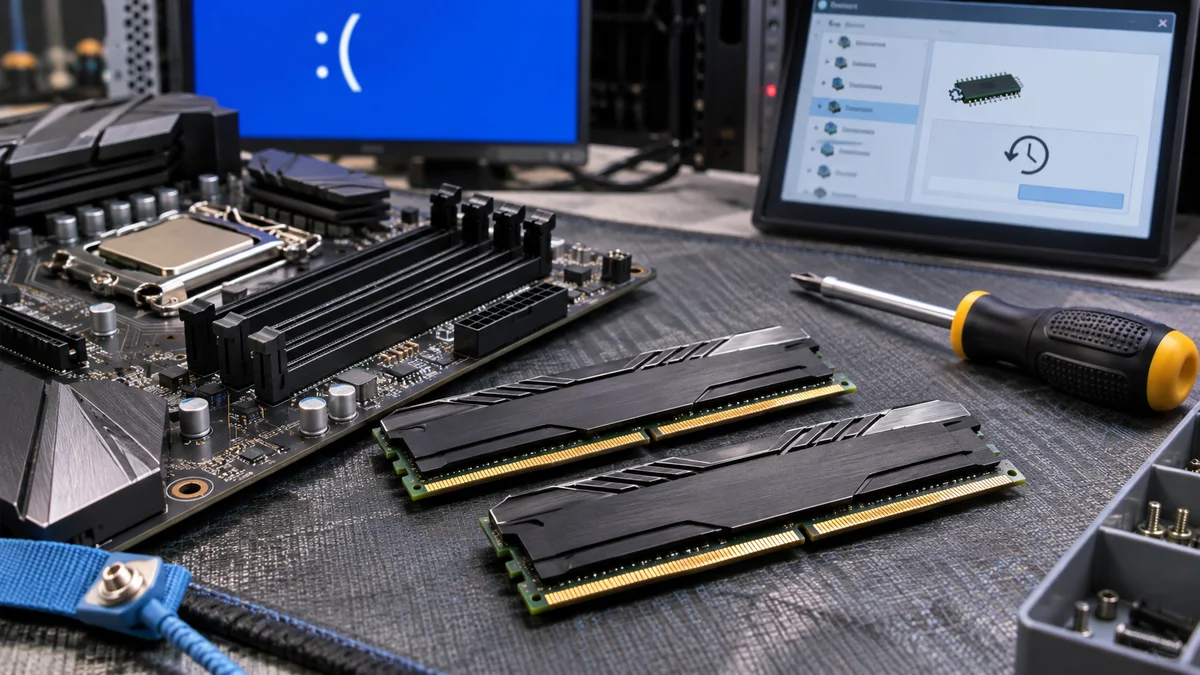
Root Cause Breakdown: Why 0x0000000a Happens
Before tearing apart hardware or wiping a drive, let’s look at what this specific stop code actually means under the hood. The 0x0000000a error code indicates that a kernel-mode process or driver attempted to access a memory address it had no business touching while at a process Internal Request Level (IRQL) that was too high.
- Recent driver or kernel-software changes: Check whether the problem began after a driver or system update.
- Memory or other hardware: A memory test can provide useful evidence, but a clean result does not rule out every hardware fault.
- System files or other software: These may be relevant, but should not be assumed from the stop code alone.
Step-by-Step Resolution Guide
Use this cautious sequence to collect evidence before making larger changes.
Step 1: Run Windows Memory Diagnostics
When the kernel trips over memory addresses, hardware integrity is suspect number one.
- Press
Win + R, typemdsched.exe, and hit Enter. - Select “Restart now and check for problems (recommended)”.
- Your system will reboot into a dedicated blue diagnostic screen. Let it run through the standard test pass.
- If it reports errors, save the result and contact the device maker or a repair professional. Do not open the device unless you are qualified and following its service instructions. A clean result does not prove that all hardware is fine.
Step 2: Boot into Safe Mode and Inspect Recent Changes
If the problem began after a driver change, check that driver first. A memory test result by itself cannot determine that a driver is responsible.
- If you can reach the sign-in screen, hold Shift while selecting Power > Restart. If Windows will not start, use the device’s Windows Recovery Environment or manufacturer support; do not repeatedly interrupt startup as a general procedure.
- Navigate to Troubleshoot > Advanced options > Startup Settings, and click Restart.
- Upon reboot, press
4orF4to enable Safe Mode. - Do not run repair commands just because this stop code appeared. If system-file corruption is suspected, follow Microsoft guidance to run DISM before SFC from an elevated terminal.
Step 3: Check a Recent Driver Change
If the problem started after a driver update, check whether rollback is available for that device.
- Right-click the Start button and open Device Manager.
- Expand categories—pay special attention to Network Adapters, Display Adapters, and Universal Serial Bus controllers.
- Right-click your primary device (e.g., your Wi-Fi or GPU driver) and select Properties.
- Switch to the Driver tab and click Roll Back Driver if the button is active.
- If the button is unavailable, Windows may not have a previous driver stored. Do not uninstall a network or storage driver blindly; check the computer or component manufacturer’s instructions or seek support.
Before changing a network driver, make sure you can access the computer maker support instructions if the connection stops working.
Preventing Recurrence
BSODs like 0x0000000a are annoying, but they serve as a valuable canary in the coal mine. To keep your development workstation pristine:
- Avoid bleeding-edge optional preview updates on mission-critical work machines.
- Do not update BIOS/UEFI firmware or change memory profiles as a generic fix. Use model-specific manufacturer instructions or qualified support.
- Regularly export your reliability history using Windows Reliability Monitor to spot unstable software before it escalates to a full kernel panic.
| Finding | Next step | Caution |
|---|---|---|
| Memory Diagnostic reports an error | Save the result and contact device support | Do not reseat or replace RAM without model-specific service guidance |
| Crash began after a driver update | Check whether Roll Back Driver is available | Do not uninstall network or storage drivers blindly |
| System-file damage is suspected | Run DISM, then SFC as an administrator | If a command errors, record it and seek support |
Frequently Asked Questions (FAQ)
1. Can an overheating CPU cause stop code 0x0000000a? The stop code alone does not establish overheating as the cause. If the device is unusually hot or shuts down under load, check the manufacturer’s cooling guidance or seek service; do not treat temperature as a diagnosis for this stop code.
2. How do I analyze the minidump file to find the exact driver name? WinDbg can inspect a dump in C:\Windows\Minidump with !analyze -v. A module name in the report is a clue for further investigation, not proof by itself that the named driver is the root cause.
3. Is it safe to use third-party driver updater tools? Avoid driver-updater tools from sources you cannot verify. For driver changes, use Windows Update or the computer or component manufacturer’s support page.
At a glance
Stop code 0x0000000A has multiple possible causes, so it does not identify a failed driver or RAM module.
Check recent changes and built-in diagnostics first; use hardware or recovery steps with device-maker guidance.