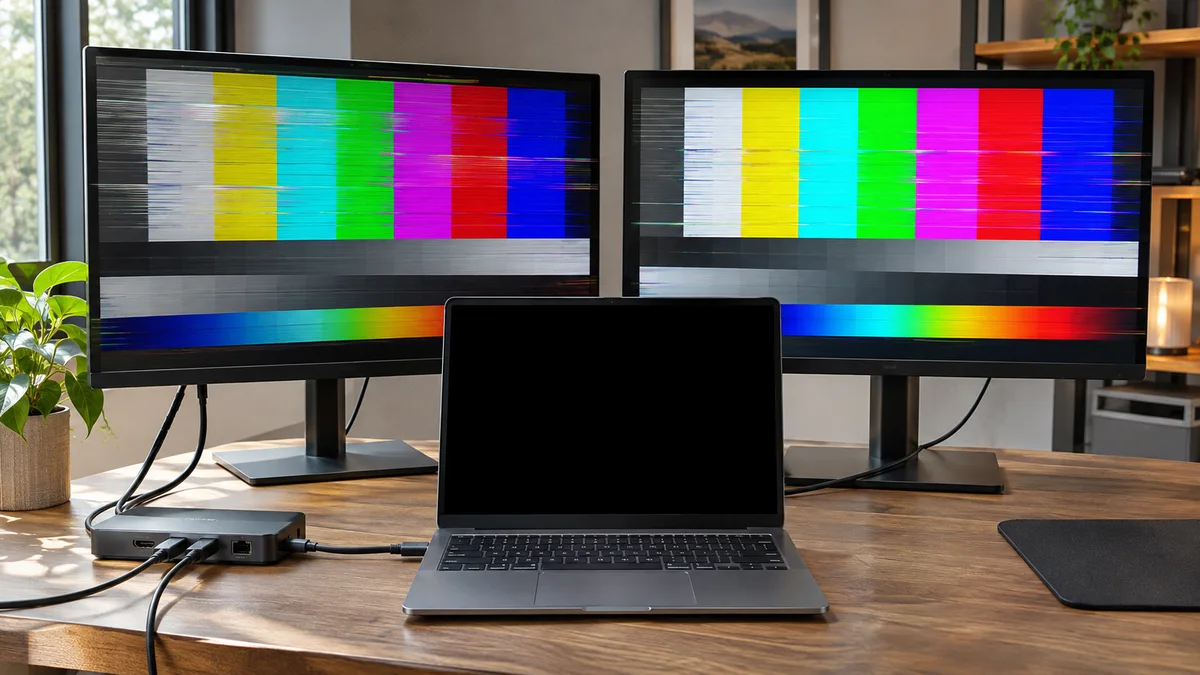
Last Friday at 4:30 PM, right as our deployment sprint was winding down, an engineering lead brought her flagship Dell Precision workstation into my lab. She was running dual external 4K monitors through a Thunderbolt 4 dock. Every twenty seconds, panel two would drop to black, display the dreaded “No Signal” banner, wake up, and drag the primary panel into an agonizing three-second stutter loop. She had already swapped cables three times and rebooted twice.
A black screen or flicker can come from a loose cable, wrong input, dock, display mode, or graphics driver. The symptom alone does not identify the cause.
If an external screen blanks or flickers, start with the connection and Windows display settings. A reboot or driver reset is not always the right first step.
Why a monitor may flicker
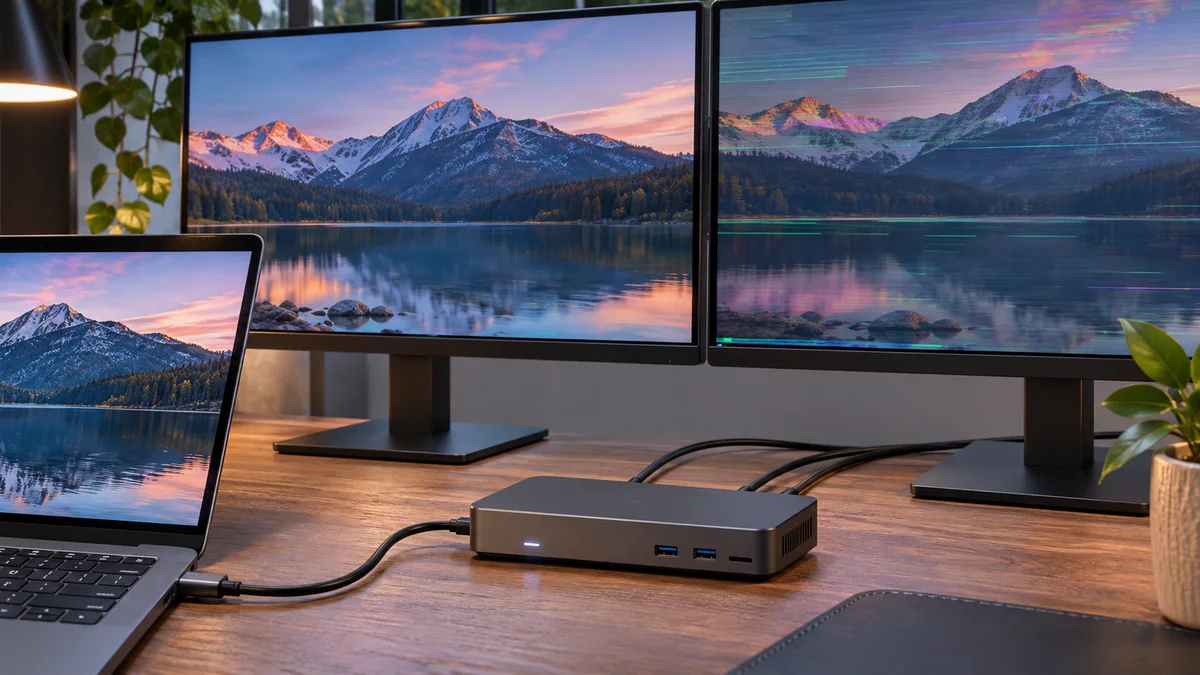
A blank or flashing external display can result from a loose or damaged cable, an incorrect monitor input, a dock or adapter, a display mode the setup does not support, or a graphics driver problem. The same symptom can have different causes, so check simple connections before changing software.
A dock may have limits on the number of displays, resolution, or refresh rate it supports. Check the laptop, dock, cable, and monitor specifications together; the connector shape alone does not confirm that every device supports the same video mode.
Safe checks in Windows
- Confirm the monitor is powered on and set to the input used by the cable.
- Reseat both ends of the cable. If available, try another supported cable or monitor input.
- Press
Windows + Pand selectExtendorDuplicate. Open Settings > System > Display and useDetectif Windows does not show the monitor. - If a dock is involved, test a direct connection if the laptop supports it. Check the dock maker’s specifications for display count and supported resolutions.
- If the problem began after a driver update, check Windows Update and the laptop maker’s support page for the exact model. Use Device Manager’s Roll Back Driver option only if available and appropriate for that device.
| Symptom | First check | Next step |
|---|---|---|
| Monitor shows “No Signal” | Selected input and cable connection | Try another supported input or cable |
| Flicker occurs through a dock | Dock connection and supported display mode | Test a direct connection if supported |
| Windows does not list the monitor | Windows + P and Display settings | Follow the laptop maker’s model-specific guidance |
Avoid risky changes
Do not delete registry keys, change registry permissions, disable driver updates with policy settings, or open a dock based only on a flickering screen. Those steps can create new problems. If basic checks do not help, use the laptop or dock maker’s instructions or support service.
Frequently Asked Questions
Why can reconnecting a cable temporarily restore the picture?
Reconnecting can make the computer and monitor detect the connection again. If the screen drops out later, check the cable, input, dock, and supported display mode; the temporary improvement alone does not identify the cause.
Should I update the integrated or dedicated graphics driver first?
There is no universal order for every laptop. Follow the laptop maker’s instructions for the exact model, especially when it uses both integrated and dedicated graphics.
Can a cable cause a display problem that looks like a driver issue?
Yes. A loose, damaged, or unsupported cable can interrupt the display connection. Try a known compatible cable and check that the laptop, dock, and monitor support the selected resolution and refresh rate.
At a glance
Check the monitor input, cable, Windows display settings, and dock limits first.
Use model-specific support guidance before changing drivers or registry settings.