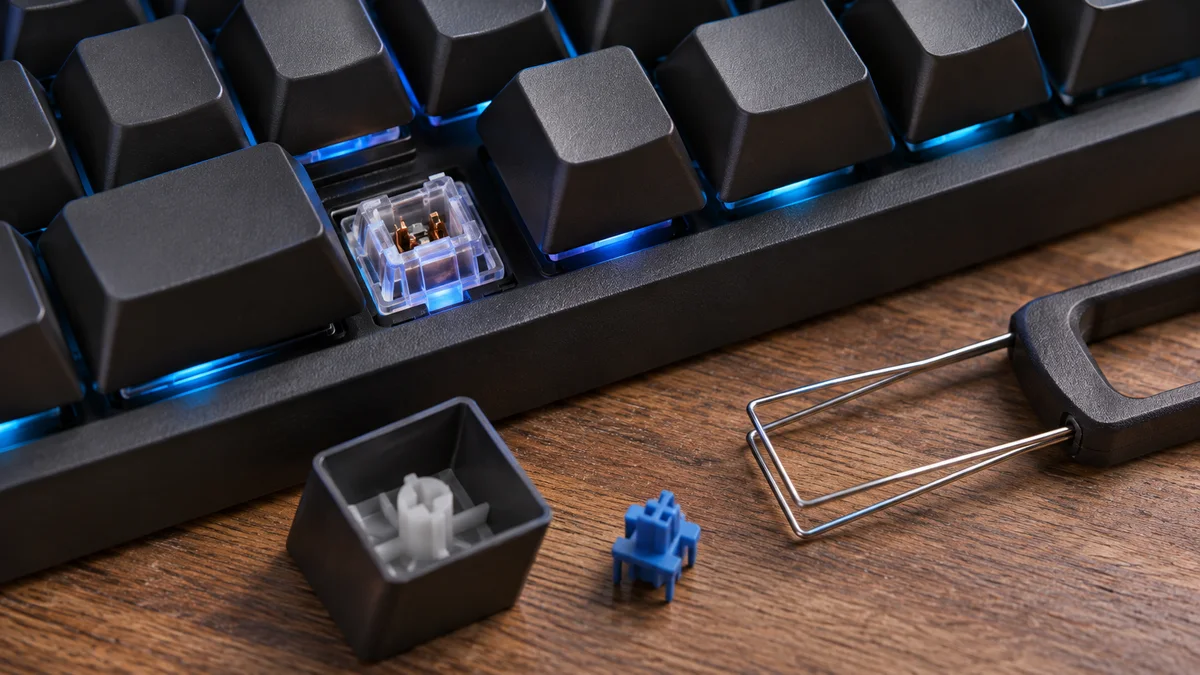
“A misplaced semicolon will break your build, but an intermittent switch leaf will break your sanity. In production environments, deterministic hardware input is not an amenity—it is an absolute operational baseline.”
Late last winter, during an urgent infrastructure migration on an internal Kubernetes cluster, my terminal suddenly spat out syntax errors during a critical namespace eviction. My custom 75% hot-swap board—built with tuned linear switches—had begun randomly dropping strokes on the T key and double-registering the E key (eerror: unexpeected token).
When you spend your life at the command line, your keyboard is an extension of your nervous system. Key chatter (unintended double strikes) and missed keystrokes can have several causes, including a connection issue, software setting, debris, or a switch fault. Before opening a custom keyboard or requesting repair, first separate connection issues from a fault in one switch.
This guide explains common causes and safer checks to try before considering a switch replacement or service.
Why a key repeats or goes missing
A repeating or missed keystroke can come from several places: the keyboard connection, an operating-system or keyboard setting, debris around a key, or a worn or damaged switch. A single symptom does not prove which part is at fault. Some keyboards also offer firmware settings that affect how they register key presses; availability and behavior depend on the model.
A simple comparison helps narrow the possibilities. If the same key acts up on another computer or USB port, the issue is more likely tied to the keyboard. If the problem disappears, check the original computer’s settings, connection path, and software instead. This is a clue, not a component-level diagnosis.
Diagnostic and Repair Protocol
Before opening the keyboard or using any cleaner, compare the connection and settings to narrow down where the symptom may be coming from.
Start with connection and settings
- Disconnect and reconnect the keyboard. If it uses a hub or dock, test a direct USB port when available.
- Try the affected key in a plain text field or another trusted keyboard test page. A tester can confirm what the computer receives, but it cannot identify a failed component by itself.
- Compare the keyboard on another computer, or compare another keyboard on the original computer. Note whether one key or several keys are affected.
- Check the keyboard maker’s software and model manual for supported firmware or key-repeat settings. Do not change operating-system power settings or run system repair commands as a first response to a single bad key.
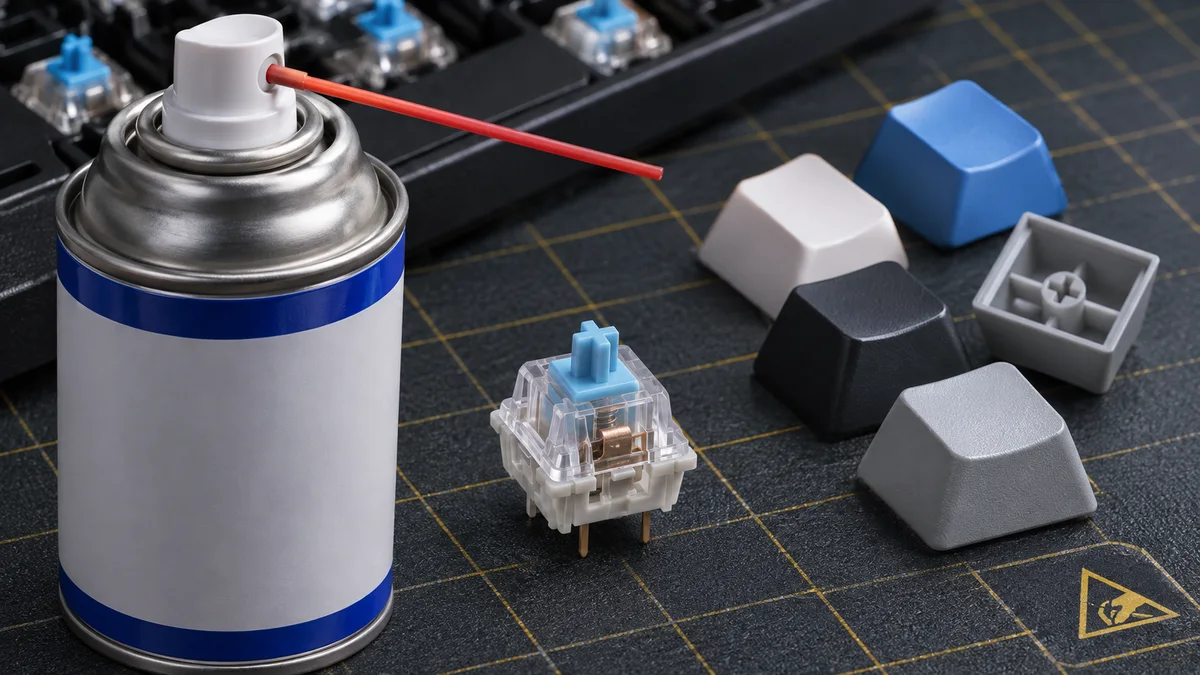
Check the model-specific maintenance guidance
Do not inject or spray liquid into a switch unless the keyboard manufacturer explicitly approves that product and method for the exact model. Switch plastics, factory lubricant, and internal designs vary. An aerosol marketed for electronics is not automatically safe for every keyboard switch.
- Disconnect an external keyboard before removing a keycap, and follow the model manual.
- Compare the affected key on another USB port or another computer. A browser tester can show repeated or missing inputs, but cannot prove which component failed.
- Check whether the manual supports hot-swap replacement. If the keyboard is soldered or the procedure is unclear, check warranty coverage and ask the manufacturer or a repair shop.
| Symptom | First check | Next step |
|---|---|---|
| One key repeats | Compare another port or computer | Check warranty and replacement options |
| One key does not register | Check connection and keyboard settings | Request inspection if it persists |
| Several keys fail together | Check cable, firmware, and device support | Do not open the board without model guidance |
| Decide whether to replace or service the switch |
If the same key still fails after connection checks, a switch, socket, or board fault may need inspection. Do not bend socket contacts or remove soldered switches without model instructions and appropriate training. Ask the manufacturer or a qualified repair shop to inspect it.
Avoid damage during troubleshooting
Do not use contact cleaner, alcohol, lubricant, metal tools, or compressed air inside a switch unless the manufacturer specifically approves the method for that model. Do not spray into optical or magnetic switches. Check the warranty before disassembly.
Frequently Asked Questions
Can I use isopropyl alcohol or contact cleaner inside a switch? Only if the keyboard manufacturer explicitly recommends that product and procedure for the exact model. Otherwise, avoid liquids and seek service if the key keeps failing.
What if cleaning or changing a setting helps only briefly? A temporary change does not identify the failed part. Record the symptom and test result, then check the model manual or warranty support.
Can a firmware debounce setting fix a repeating key? Some supported keyboard firmware exposes debounce options, but the settings and effects vary. Follow the keyboard maker documentation; do not treat a setting change as proof that the switch is healthy.
At a glance
Compare another port or computer first, and do not inject liquid into a switch.
If the key still fails, check the model manual and warranty before arranging repair.