The atmosphere inside the departure lounge of San Francisco International Airport was a chaotic symphony of humming jet engines and anxious travelers rolling heavy luggage across polished tile floors. With exactly twenty minutes remaining before the final boarding call for Flight 902 to New York, Senior Financial Analyst Marcus sat hunched over his enterprise-grade ThinkPad, sweat beading on his forehead. The stakes could not possibly have been higher. On his screen sat the master consolidated financial model for a multi-billion-dollar cross-border acquisition—a document that executive leadership in Manhattan desperately needed finalized and uploaded to the secure M&A portal before the Tokyo markets opened.
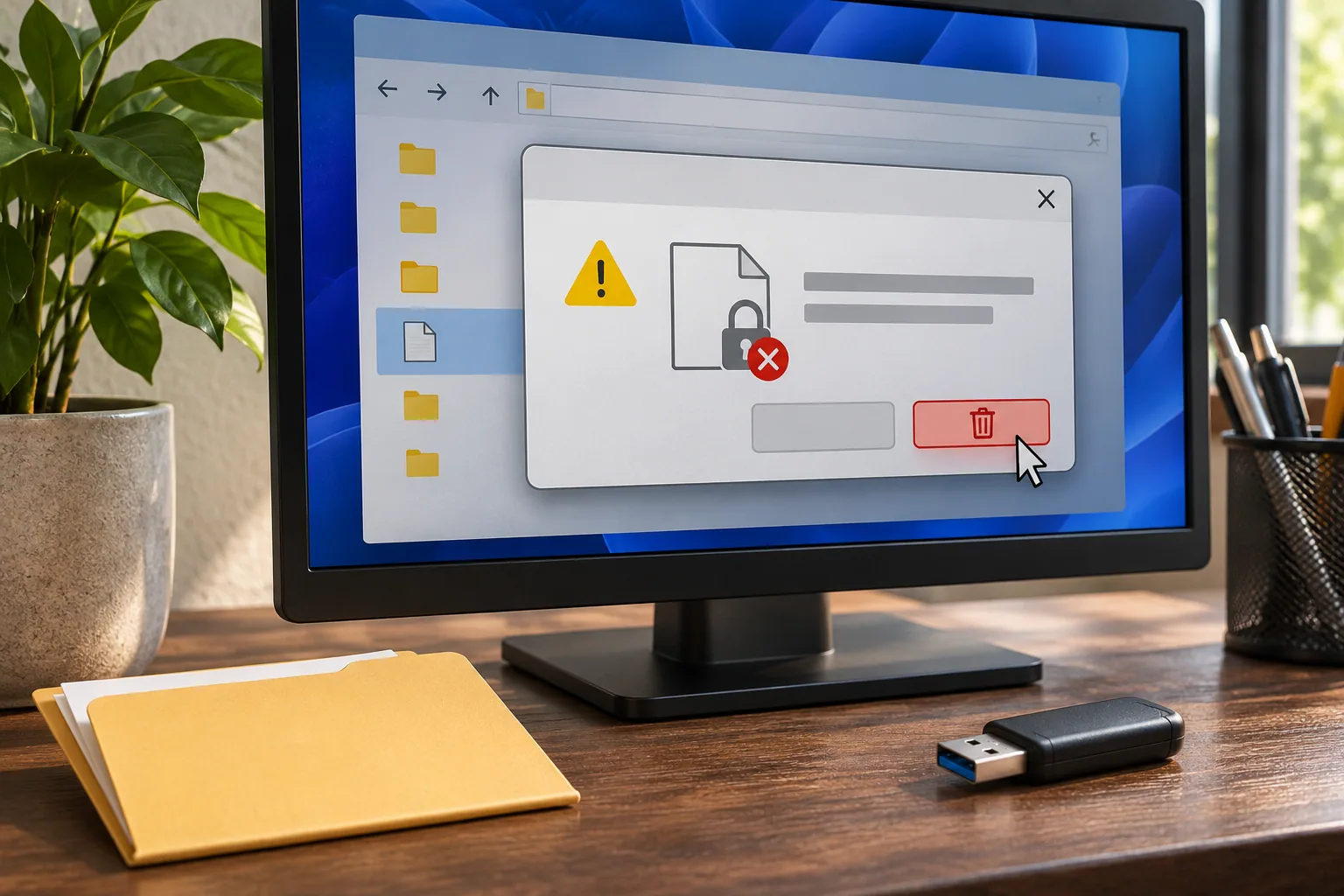
Hoping to clear out temporary clutter before the final transmission, Marcus attempted to delete an outdated draft version of the workbook labeled Acquisition_Model_Final_v3_OLD.xlsx from his local working directory. Instead of the satisfying swoosh of a file vanishing into the recycle bin, a sterile, infuriating Windows dialogue box abruptly hijacked his display. The notification read: Action can’t be completed because the file is open in another program. Close the file and try again. Marcus felt his stomach drop. He frantically glanced at the boarding pass in his hand, then back at the glowing screen. The clock in the Windows taskbar felt like a ticking countdown timer in a thriller film, mocking his rising panic.
Acting on pure adrenaline and desperation, Marcus began frantically hammering his mouse, clicking the close button on every open window, reopening Microsoft Excel, closing it again, and spamming the delete key while holding down the Shift key. He clicked Try Again at least half a dozen times, only for the exact same rigid error prompt to pop back up with ruthless consistency. The background process refusing to yield was entirely invisible to the naked eye. Each failed attempt chipped away at the precious minutes he had left to clear airport security checkpoints and board his aircraft.
The realization of what failure meant was paralyzingly clear. If he could not purge this conflicting file lock and transmit the certified master packet immediately, the sync pipeline would reject the package due to naming collisions, potentially delaying corporate sign-off and exposing the firm to severe regulatory compliance penalties. He needed a definitive, industrial-strength intervention right now, with zero room for error, before the gate agent called his seat number.
2. Root Cause Breakdown
To effectively combat a stubborn file lock, an enterprise systems engineer must understand the internal architecture of the Windows operating system file management subsystem. At the core of the Windows NT kernel, every open file, directory, registry key, and synchronization primitive is represented by an internal data structure known as a kernel object. When an application requests access to a file, the I/O manager grants a specific handle that dictates access rights—ranging from read-only to exclusive write access. If a program initializes a session and fails to cleanly release its handle upon termination, the operating system preserves the lock to prevent data corruption, effectively rendering the file untouchable by normal delete commands.
In corporate office environments, this locking behavior is frequently caused by orphaned background processes that remain silently active in memory long after their graphical user interfaces have been closed. A prime culprit is EXCEL.EXE or AcroCEF.exe hanging invisibly in the background, consuming CPU cycles while holding an active handle to temporary cache files or parent workbooks. When users repeatedly click on files or applications, the operating system spawns multiple threaded instances, increasing the probability of a handle leak where the operating system loses track of which process owns the locking mechanism.
Furthermore, modern Windows desktop enhancements contribute heavily to unexpected file locks. Windows Explorer actively maintains background indexing threads, thumbnail preview generators, and shell extension handlers that constantly scan directory contents. When a user tries to delete a document, Windows Explorer might be in the middle of reading the file’s properties or generating an icon cache preview. Simultaneously, enterprise antivirus agents and Endpoint Detection and Response (EDR) software perform real-time behavioral file scans whenever file modification flags are raised, placing temporary read-locks on files that block standard deletion operations until the security scan concludes.
3. Find the process holding the file safely
- Save your work in the app that has the file open, then close the app normally. If a save, copy, or sync is still in progress, let it finish first.
- If you cannot identify the app, press
Win + R, enterresmon, and open Resource Monitor. On the CPU tab, use Associated Handles to search for part of the file name. This can help identify processes with an open handle. - Return to the identified app and close it normally. You can end an unresponsive app from Task Manager, but unsaved work may be lost. Do not terminate an unfamiliar process or a core Windows process.
- After the handle is released, try deleting the file again in File Explorer. The
del /foption applies to read-only files; it does not bypass an active file lock or NTFS permissions. The/qoption suppresses confirmation, so use it carefully.
If Resource Monitor does not identify the owner, Microsoft Sysinternals Process Explorer can search by file name using Find > Find Handle or DLL. On a work device, ask IT before changing security settings or handling managed data.
Safety checks before deleting a file
Force-ending an app can discard unsaved work or interrupt a write. Confirm what the process is doing and close it normally whenever possible. Do not change ownership with takeown or permissions with icacls, and do not disable antivirus or endpoint protection as a routine workaround. Ask the file owner or an administrator about access-denied errors.
| Check or choice | Guidance in this article |
|---|---|
| Step 1 | Save your work in the app that has the file open, then close the app normally. If a save, copy, or sync is still in progress, let it… |
| Step 2 | If you cannot identify the app, press Win + R, enter resmon, and open Resource Monitor. On the CPU tab, use Associated Handles to se… |
| Step 3 | Return to the identified app and close it normally. You can end an unresponsive app from Task Manager, but unsaved work may be lost.… |
5. Frequently Asked Questions (FAQ)
How can I find which app is using a file? Use CPU > Associated Handles in Resource Monitor, or search for the file name in Microsoft Sysinternals Process Explorer. Close the identified app normally and retry.
Does del /f unlock a file? No. /f requests deletion of read-only files. It does not release an open handle or override NTFS access permissions.
Is it safe to force-end the app? Only consider it as a last resort when the app is unresponsive and you accept the risk of losing unsaved changes. An interrupted write can leave the file incomplete. Never terminate an unfamiliar or core Windows process.
At a glance
When Windows says a file is in use, identify the process holding it before trying to delete or rename the file.
Save work and close the relevant app normally; avoid force-ending unfamiliar system processes.