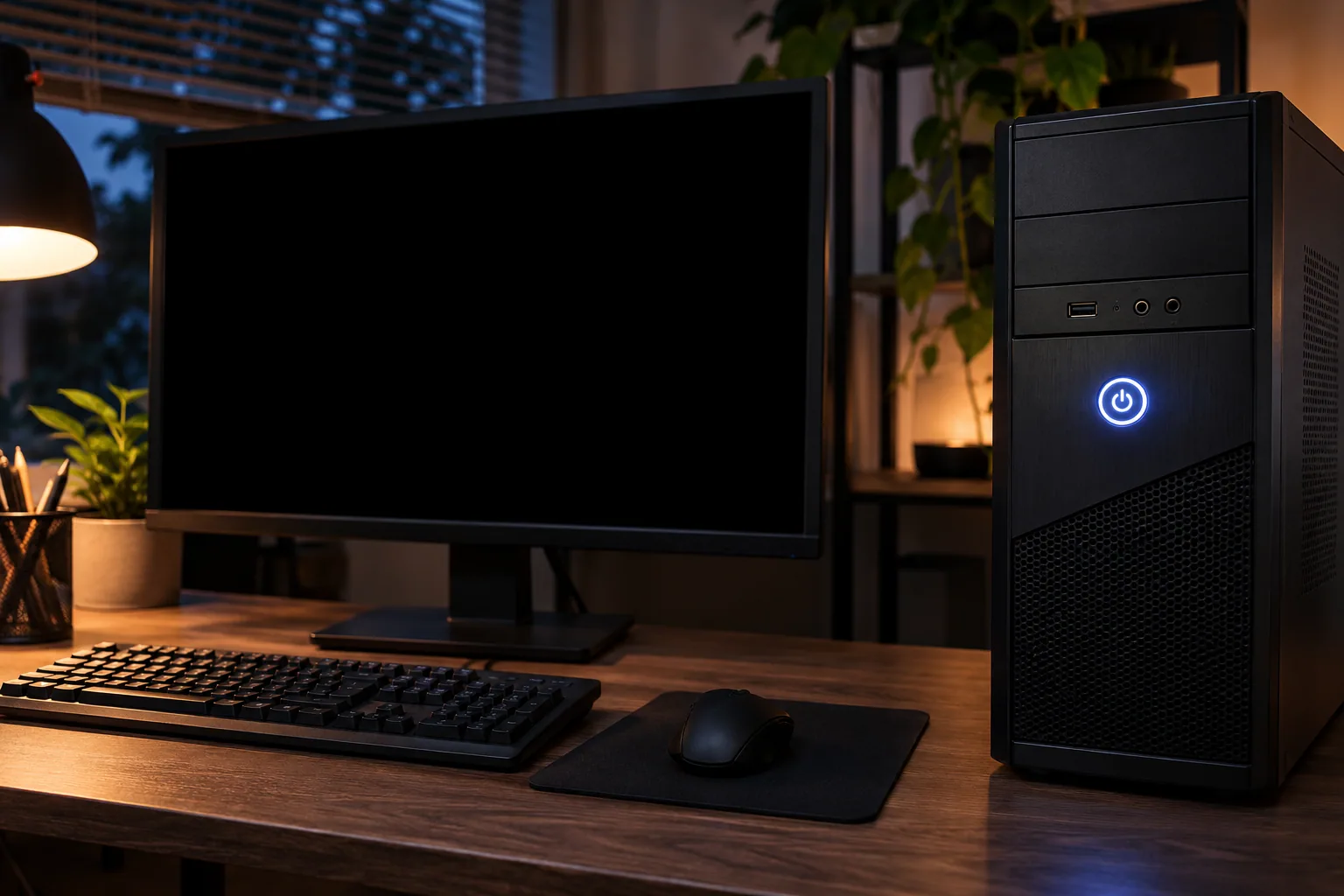
Picture this: It is late evening, and I am sitting in a busy Silicon Valley hotel lobby during a business trip. My laptop battery is sitting precariously at 18 percent. I desperately need to review a critical corporate financial document stored on our secure shared drive before tomorrow morning’s stakeholder alignment call. I finish reviewing the files, save my local notes, and click the Windows Start menu to shut down the machine so I can conserve every last drop of battery life for the flight tomorrow. I close the lid, pack up my gear, and head back to my room.
Ten minutes later, as I unpack my backpack on the desk, I notice the laptop chassis feels unusually warm. The tiny side power LED is still glowing softly. I open the lid, and the screen instantly lights back up to the lock screen, and my battery is now drained down to a critical 4 percent. The machine simply refused to turn off. Instead of shutting down, it hung in a bizarre limbo state where the operating system pretended to close while the hardware refused to power down the motherboard and power rails. This is a classic enterprise headache that wastes battery, overheats systems in transport, and ruins morning workflows.
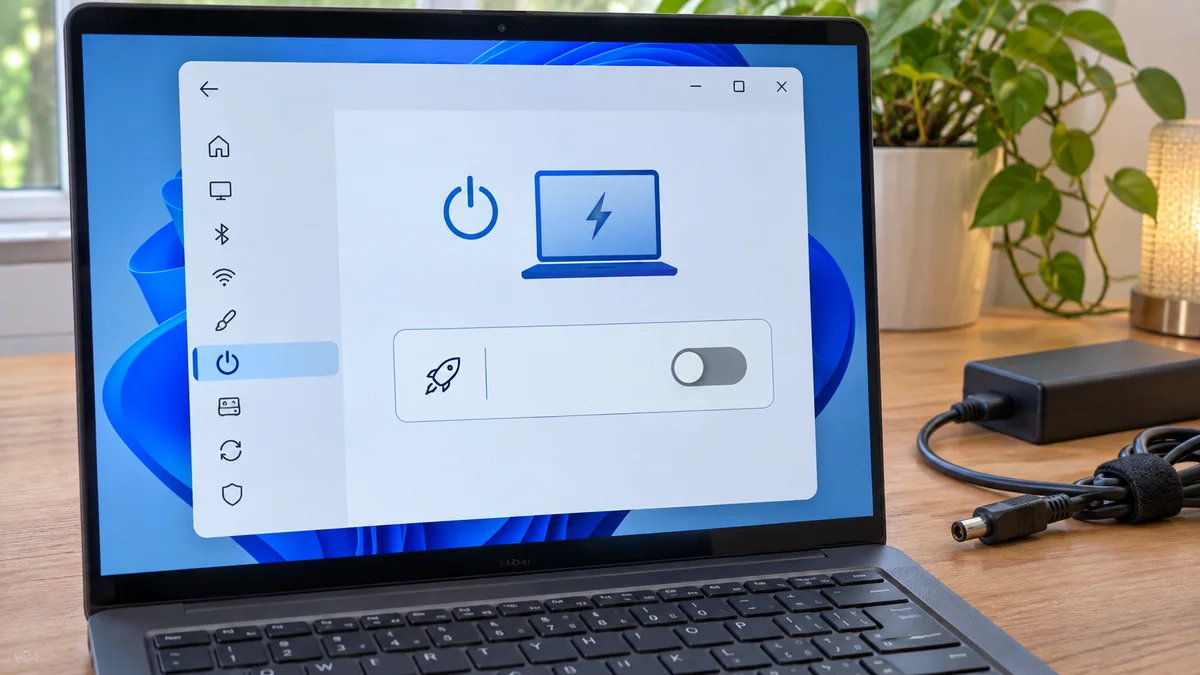
💡 Quick Diagnostic Tip: If your laptop fans keep spinning or the power light stays on for hours after clicking Shut Down, you are dealing with a power state handoff failure, not a failing battery.
2. Root Cause Breakdown
When a Windows 10 or Windows 11 computer does not finish shutting down, the symptom alone cannot identify a failed component. Fast Startup, a connected device, a driver, or an update may be relevant, among other possibilities.
Fast Startup logs out users and saves the kernel session and driver state to the hibernation file to speed up the next boot. Microsoft documents specific shutdown failures associated with this feature, but a black screen or spinning fan alone does not prove that Fast Startup or ACPI caused the problem.
Driver or update issues are also possible, but do not assume a particular chipset driver is responsible. Check Windows Update history and the computer maker’s support page for the exact model.
Connected USB devices or a dock can be disconnected one at a time to see whether the behavior changes. Do not infer electrical backfeed or Wake-on-LAN interference from the symptom alone.
Step-by-Step Resolution: Disabling Fast Startup
Turning off Fast Startup is a useful check when the feature may be involved, but it is not a guaranteed fix. Save open work first; on a managed PC, follow IT policy.
Step 1: Open the Control Panel Click your Windows Start menu, type Control Panel, and hit Enter. To make navigation easier, change the View by dropdown in the top right corner from Category to Large icons or Small icons.
Step 2: Access Power Options Locate and click on Power Options. This will open the main power plan management window displaying your balanced or high-performance plans.
Step 3: Choose What the Power Buttons Do On the left-hand column of the window, look for the link that says Choose what the power buttons do and click it. You will see your shutdown settings, but the options at the bottom will likely be grayed out and unclickable.
Step 4: Unlock the Settings At the top of that window, click the shield icon link that says Change settings that are currently unavailable. This grants you the administrative clearance needed to modify deep power states.
Step 5: Disable Fast Startup Look at the bottom section under Shutdown settings. Uncheck the box next to Turn on fast startup (recommended). Once unchecked, click the Save changes button at the bottom.
Note: Disabling Fast Startup changes the shutdown/startup path. The effect on boot time varies by computer, and the change does not rule out other causes.
Advanced Verification via Event Viewer and Device Manager
If the behavior continues, disconnect nonessential USB devices or a dock one at a time and see whether the symptom changes. Check model-specific Windows and driver guidance before making further changes.
Avoid changing power-management properties on unrelated devices. If a specific device is identified, follow the PC maker’s instructions or ask IT before updating its driver.
Event Viewer’s System log may provide context around a restart, but Kernel-Power Event ID 41 records that Windows did not shut down cleanly; by itself, it does not identify the cause or prove that a forced power-off followed this particular hang.
Expert Advice and Hardware Precautions
Avoid forcing power off while Windows indicates that work may still be saving. If the computer is truly unresponsive and normal shutdown is impossible, unsaved data can be lost. Firmware updates are not a routine first step; use only the instructions for the exact model and make sure a recovery path is available.
| Check | Where to look | Next step |
|---|---|---|
| Shutdown still active | Save indicator and screen message | Wait while work may still be saving |
| Fast Startup | Control Panel power-button settings | If absent, check hibernation state or device policy |
| Connected devices and drivers | Disconnect one peripheral at a time; review update history | Follow the PC maker’s model-specific instructions |
5. Frequently Asked Questions (FAQ)
Will disabling Fast Startup delete files or apps? The setting changes how Windows starts after shutdown; it is not a command to remove personal files or installed apps. Save open work before changing settings.
What if the Fast Startup option is missing? Hibernation may be disabled or a device policy may control the option. Check with IT on a managed PC; do not run broader power commands without understanding their effects.
What should I do if the PC still will not shut down? Note when it happens, test nonessential peripherals one at a time, and check Windows Update history and the manufacturer’s support instructions. Event ID 41 alone does not diagnose the cause.
At a glance
Fast Startup is one possible factor, not a diagnosis based on a dark screen.
Check saved work first, then settings, peripherals, and model-specific driver guidance.