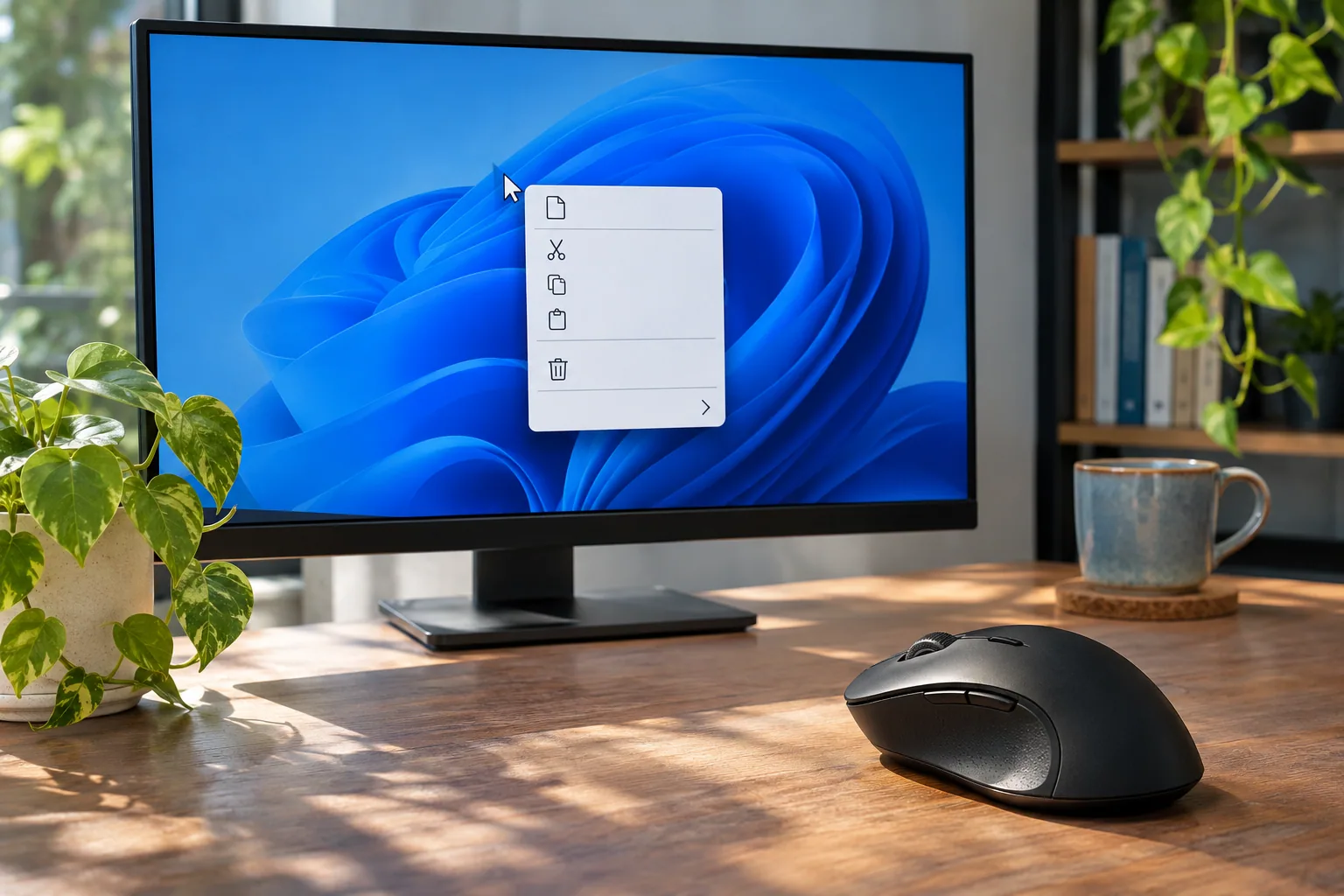
Windows 11 presents common commands in a streamlined menu. Some older app extensions are available under Show more options; whether another command appears also depends on the app.
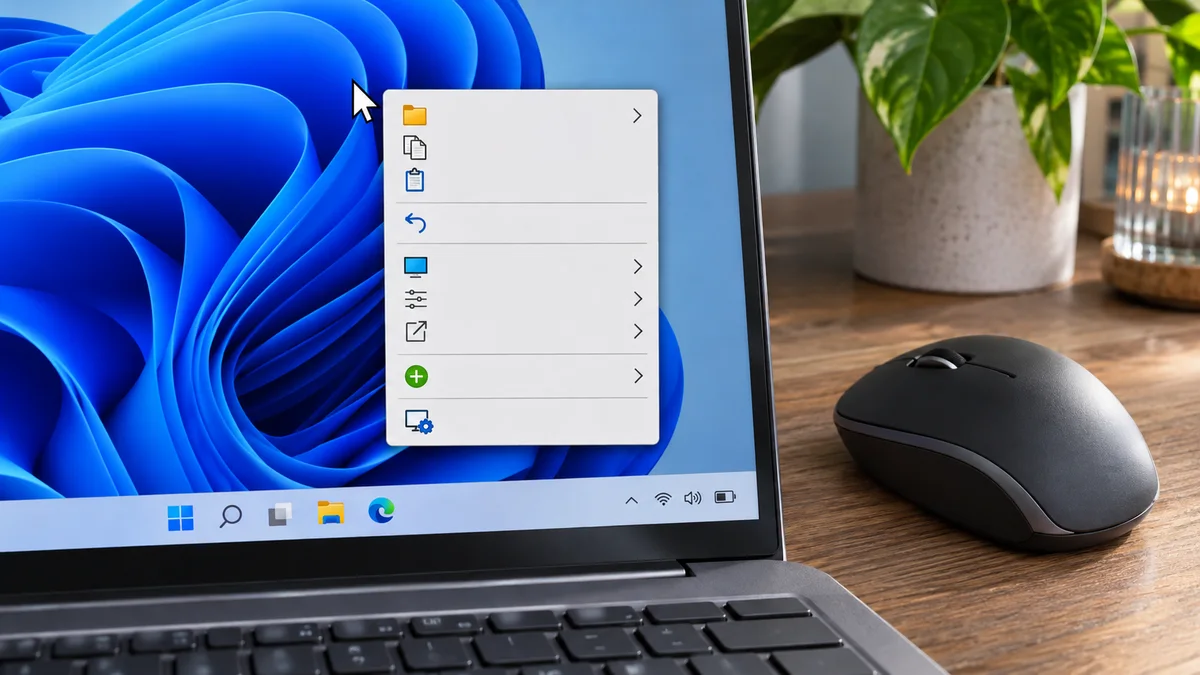
Let us look at why this happens and how you can restore the classic right-click context menu across your organization in under 2 minutes.
Find older commands in the Windows 11 menu
Before jumping into the fix, let us understand what is happening under the hood of the Windows Shell.
- A streamlined menu: Windows 11 shows common commands in a streamlined context menu. Microsoft notes that some older app extensions remain available under Show more options.
- App-specific commands: Some older extensions do not appear in the first menu. Check the app maker’s documentation if a command is still missing.
- No general menu switch: Use the documented menu option first. A Registry workaround is an unofficial change and is not a standard Settings toggle.
An unofficial Registry workaround and how to undo it
For a supported first step, select Show more options in the context menu. An unofficial Registry workaround is also used on some Windows 11 systems, but Microsoft does not document it as a supported user setting and behavior may vary by version. The steps below explain how to back up and reverse that change.
Optional: Change the menu for the current user
This command changes a per-user Registry location (HKCU). It is not a Microsoft-documented supported setting, and the result may vary across Windows builds. Export the relevant key first; on a managed PC, ask IT before proceeding. Administrator rights are not normally required to write to the current user’s HKCU key, though organizational policy can restrict it.
- Open Command Prompt or Windows Terminal as the same user whose menu you want to change.
- Copy and paste the following command into the terminal window:
reg add "HKCU\Software\Classes\CLSID\{86ca1aa0-34aa-4e8b-a509-50c905bae2a2}\InprocServer32" /f /ve - Press Enter. You should see the message:
The operation completed successfully. - Restart Windows Explorer to apply the changes immediately. Open Task Manager (Ctrl + Shift + Esc), find Windows Explorer in the processes list, right-click it, and select Restart.
reg delete "HKCU\Software\Classes\CLSID\{86ca1aa0-34aa-4e8b-a509-50c905bae2a2}" /fManual Registry method If you prefer doing things manually or need to verify the registry key yourself, follow these clicks:
- Press
Windows Key + Rto open the Run dialog box. - Type
regeditand press Enter (approve any User Account Control prompts). - Navigate through the left-hand tree structure to:
HKEY_CURRENT_USER \ Software \ Classes \ CLSID - Right-click the CLSID key, select New > Key, and name the new key exactly this:
{86ca1aa0-34aa-4e8b-a509-50c905bae2a2} - Inside that new key, right-click the default sub-key folder, select New > Key, and name it:
InprocServer32 - Click on InprocServer32, look at the right-hand pane, double-click the (Default) value, ensure the Value data field is completely blank, and click OK.
- Restart Windows Explorer via Task Manager as outlined in Method 1.
Check compatibility before changing the Registry
Before changing the Registry, keep these limitations in mind. This undocumented workaround is for individual consideration, not a blanket enterprise deployment recommendation:
- Per-user setting: This key applies to the current user. Do not deploy the undocumented workaround across an organization without approval and compatibility review from IT.
- Updates: Future Windows updates may change or remove the behavior. Do not assume the workaround will persist across versions.
- App compatibility: Some apps may use the newer menu only, so the workaround may not expose every command. Check the app maker’s guidance.
| Option | What it does | Considerations |
|---|---|---|
| Show more options | Opens the previous context-menu commands using Microsoft’s documented route | Some app extensions may depend on the app maker’s support |
| Registry workaround | Changes the menu on some Windows 11 installations | Unofficial and version-dependent; back up first and keep a rollback path |
Frequently Asked Questions (FAQ)
Q1: Does this tweak require a full system reboot? Restarting Windows Explorer may refresh the menu, but the workaround can behave differently across builds. If it does not work, undo the change and use Show more options.
Q2: Is this an officially supported Windows setting? A2: Microsoft documents Show more options as the way to see commands from the previous menu. This Registry workaround is not described there as a supported setting; back up the Registry and expect behavior to vary.
Q3: Should I deploy it to all company computers? A3: Do not apply an undocumented Registry workaround broadly without approval. Ask your IT team to assess compatibility, policy, and recovery first.
At a glance
Try the documented Show more options route first.
Treat Registry changes as an unofficial workaround, back up the key, and be ready to reverse it.