
The clock on the wall of our NYC office was glaring at me: 2:40 PM. The company-wide board meeting starts at 3:00 PM, and I am the lead IT systems engineer responsible for projecting the Q3 financial models. Suddenly, right as I switch to the master slide deck, my top-tier workstation locks up completely. The mouse pointer is frozen in place, the audio is buzzing like a trapped hornet, and keyboard inputs do nothing. Panic sets in. I force a hard reboot by holding the power button, cross my fingers, and pray it boots up before the executive team walks through the doors.
If you work in IT or manage high-performance setups, you know this gut-wrenching feeling all too well. Windows 11 random freezing is arguably the most frustrating diagnostic nightmare because it leaves zero error messages on your screen when it happens.
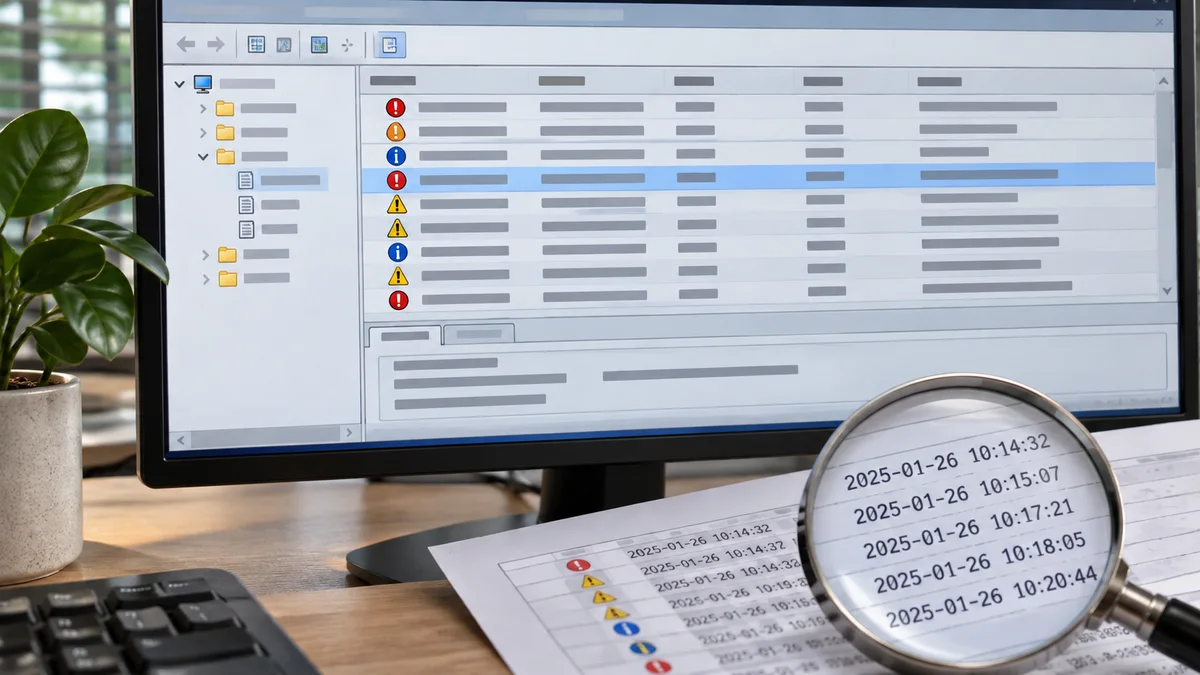
Rather than swapping components at random, start by comparing the time of the freeze with the events Windows recorded. The steps below help narrow down what to check next.
Why Windows 11 can freeze
Freezing can have several causes, including hardware, drivers, storage, or software. An event log is a clue, not a diagnosis by itself.
- Kernel-Power Event ID 41: Windows records that the previous shutdown was not clean. This event does not identify why it happened.
- WHEA-Logger: This can indicate a reported hardware error. Read the event details and seek device-specific guidance before changing firmware or memory settings.
- Display or storage errors: Related entries may help narrow the timing, but a freeze alone does not prove a driver or component has failed.
Use Event Viewer to compare the timeline
Let’s dive into the operating system and pull the forensic data. You do not need third-party diagnostic bloatware for this; Windows 11 has everything built right in.
Step 1: Open Event Viewer and Target System Logs
Click on the Start menu, type Event Viewer, and hit Enter.
- In the left-hand navigation pane, expand Windows Logs.
- Click directly on System. This is where Windows logs all hardware, driver, and system-level service events.
Step 2: Filter for Critical Failures Right Before the Crash
Loading every single system event will overwhelm you. We need to isolate the exact timestamp of your freeze.
- On the right-hand Action pane, click Filter Current Log…
- Under the Logged drop-down, select a relevant timeframe (e.g., “Last 1 hour” if it just happened).
- Under Event Level, check the boxes for Critical and Error. Click OK.
Step 3: Hunt Down the Timestamp Markers
Scroll through the filtered list around the time of the freeze and subsequent restart. Event ID 41 records an unclean shutdown; it does not confirm the cause. Compare nearby events and open their details. A DistributedCOM warning alone is not proof of a freeze cause; repeated disk-related errors are a clue to investigate, not a diagnosis.
Step 4: Verify System Integrity via Command Prompt
Once you identify potential corrupted system files or driver clashes in the logs, run a quick system health check:
- Press
Windows Key + Xand select Terminal (Admin) or Command Prompt (Admin). - Type
DISM.exe /Online /Cleanup-image /Restorehealthand hit Enter. - Once finished, type
sfc /scannowand let Windows repair any foundational OS components.
Choose a cautious next step
- Use device-maker guidance: When a driver change is indicated, use the PC or component maker’s support instructions. Avoid changing several drivers at once.
- Temperature: If overheating is suspected, use the computer maker’s diagnostic tools or consult a technician; do not infer a fault from fan noise alone.
- Power: Event ID 41 by itself does not prove a power-supply fault. Check related error codes and have hardware inspected if the problem repeats.
- Back up important files, note recent updates or device changes, and change only one setting at a time. On a managed work computer, contact IT before changing drivers or firmware.
| Event clue | What it tells you | What to check next |
|---|---|---|
| Kernel-Power 41 | An unclean shutdown was recorded; it does not name the cause | Bugcheck details and surrounding System log entries |
| WHEA-Logger | Windows recorded a hardware error report | Event details and the PC maker’s support guidance |
| Disk-related entries | Storage errors may have occurred | Back up files and check for repeat errors or run maker diagnostics |
Frequently Asked Questions (FAQ)
Q1: What does Event ID 41 mean, and does it mean my power supply is broken? A: It means Windows detected that the previous shutdown was not clean. It does not identify a power-supply fault; check the bugcheck details and surrounding events.
Q2: I see hundreds of errors in Event Viewer. Are they all causing my PC to freeze? A: No. Compare entries around the freeze and restart, then open their details. There is no universal one-to-five-minute window that identifies the cause.
Q3: Can a failing SSD cause random total system freezes in Windows 11? A: A storage problem can contribute to a freeze, but an event number alone does not prove the drive is failing. Back up important files and check whether storage-related errors repeat; use the device maker’s diagnostic guidance.
If the freeze happens during an update, see what to check when a Windows 11 update appears stuck at 100%.
At a glance
Event ID 41 records an unclean shutdown; it is not a root-cause diagnosis.
Compare nearby logs, back up important files, and make changes only after narrowing the cause.