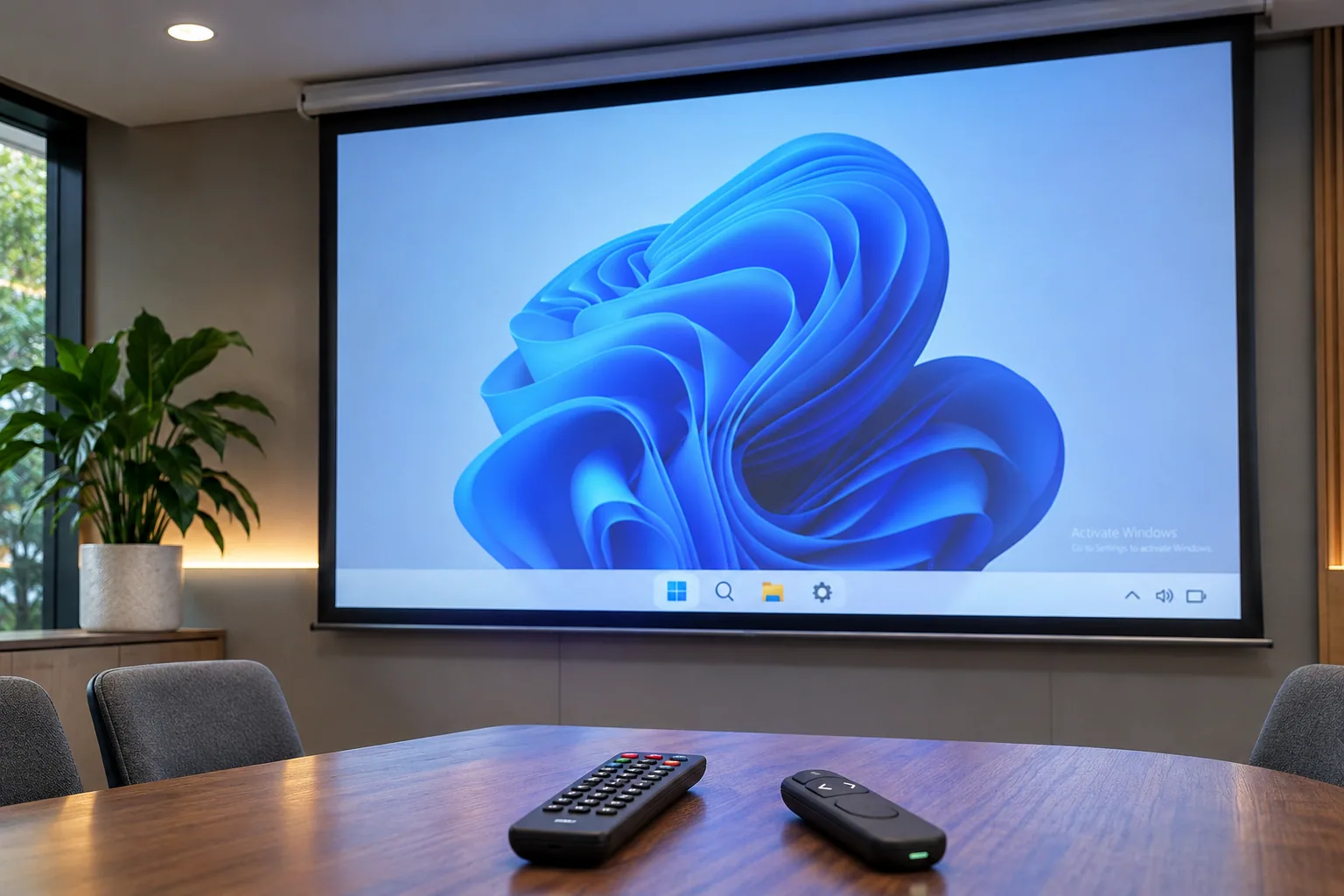
The clock on the wall of our NYC office read 9:40 AM. Exactly twenty minutes from now, our CEO was scheduled to hook up his laptop for the quarterly board meeting, projecting his screen onto a massive 4-meter display at the front of the room. He called me over to his desk, sweating through his suit jacket, pointing frantically at the bottom right corner of his monitor. There it was: that obnoxious, glowing translucent text staring right back at us—“Activate Windows. Go to Settings to activate Windows.”
In front of a room full of venture capitalists and board members, projecting a machine with an unactivated OS watermark looks messy and unprofessional. He looked at me, dead serious, and whispered, “Fix it. Now.”
The Trap: Why Standard Panic Leads to Broken Systems
When faced with this annoying overlay, most panicked sysadmins or office workers make classic mistakes that waste precious minutes:
- Wasting Time in Settings: Clicking frantically through Settings > Update & Security > Activation only to find a generic error code because the corporate VPN hasn’t synced with the KMS host yet.
- Downloading Shady Third-Party Tools: Grabbing sketchy “watermark remover” executables from random internet forums, which immediately trigger Windows Defender or, worse, inject unwanted adware right before a high-stakes meeting.
- Endless Reboots: Restarting the Explorer process or rebooting the machine repeatedly, hoping the desktop rendering engine will magically drop the overlay layer.
None of these work under tight pressure. What we actually needed was a direct, built-in system command to stop the desktop notification service from rendering the watermark text overlay, keeping the machine stable for the presentation.
Common reasons an activation notice appears
The watermark alone does not identify its cause. Check the Activation page in Windows Settings and note its error code. Common items to verify include:
- Whether the installed Windows edition matches the product key.
- Whether you are signed in to the Microsoft account linked to a digital license.
- Whether a major hardware change, such as a motherboard replacement, requires license reactivation.
- For a company device using KMS or volume licensing, whether the organization’s network/VPN and activation policy are in order; ask IT to check these.
An activation notice and an app freeze appearing at the same time do not prove that one caused the other. If an app hangs, check its CPU, memory, and disk activity separately in Task Manager.
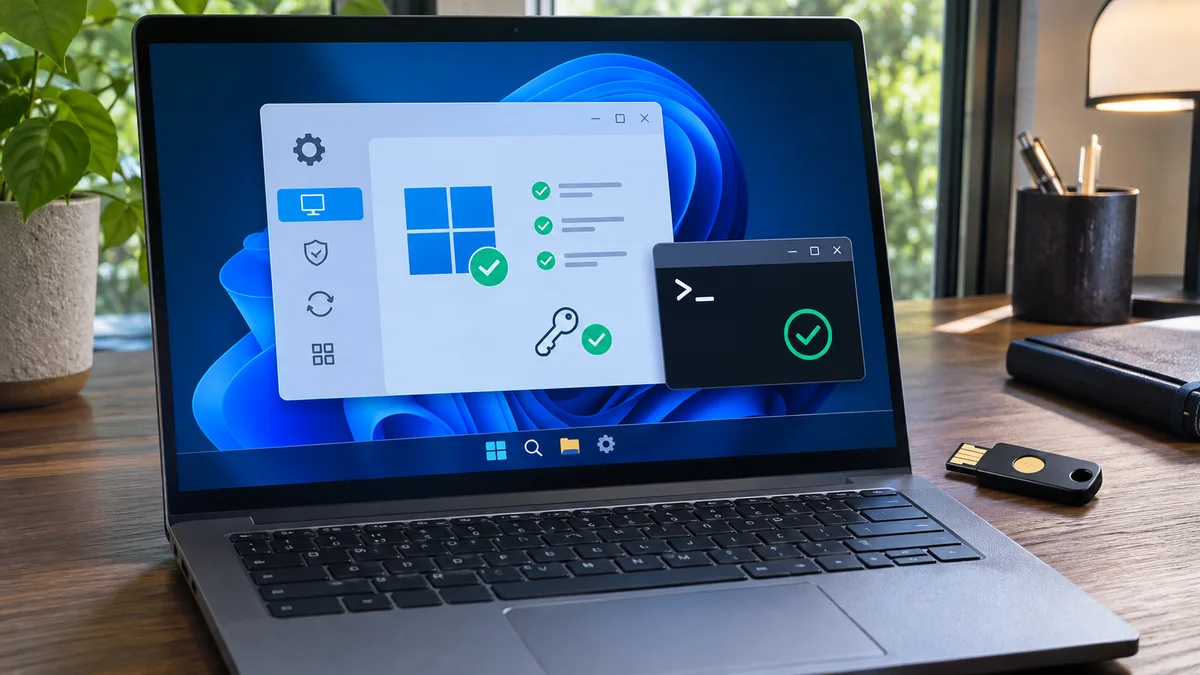
Check and Repair Windows Activation Safely
slmgr /rearm is not a watermark-removal command. It manages a licensing grace period, so do not run it to hide the activation notice. Force-closing explorer.exe will not repair Windows activation either.
- Check the activation state: Open Settings > System > Activation. Note the Windows edition (Home or Pro) and any error code shown there.
- Run the troubleshooter if available: Select Troubleshoot on the Activation page and follow its prompts. If your digital license is linked to a Microsoft account, make sure you are signed in to that account.
- Check the key or organization license: If you have a product key, enter it on the same page. For a company PC activated through KMS or volume licensing, give the error code and network/VPN status to your IT administrator instead of trying unrelated commands.
- After a hardware change: If activation stopped after replacing the motherboard or other major hardware, use the troubleshooter’s hardware-change option. Whether reactivation is available depends on the license.
If the notice remains after activation, follow the status shown in Settings and restart Windows normally after saving your work. Avoid third-party watermark-removal utilities and bypass scripts from unverified sources.
Important Activation Notes
Use the activation status and error code shown in Windows Settings to choose the next step. Company devices may follow organization-specific licensing policies, so check with your IT administrator. Do not run licensing or force-termination commands to hide the activation notice.
| Check | What to note | Next step |
|---|---|---|
| Activation status | Windows edition and error code | Follow the Settings guidance |
| Digital license | Microsoft account linked to it | Sign in to that account |
| Organization license | KMS/VPN and company policy | Share the error with IT |
Frequently Asked Questions (FAQ)
What should I check when Windows shows an activation error? Open Settings > System > Activation, note the edition and error code, and select Troubleshoot if that option appears.
What if activation stopped after a motherboard replacement? Use the hardware-change option in the Activation troubleshooter. The device may need a digital license linked to your Microsoft account; reactivation depends on the license terms.
What should I do on a company PC using KMS? Give your IT administrator the error code and network or VPN status. The organization may need to check its activation server and licensing policy.
At a glance An activation notice alone does not identify the cause; start with the status and error code in Settings. Use the troubleshooter first and contact IT for company-managed devices.