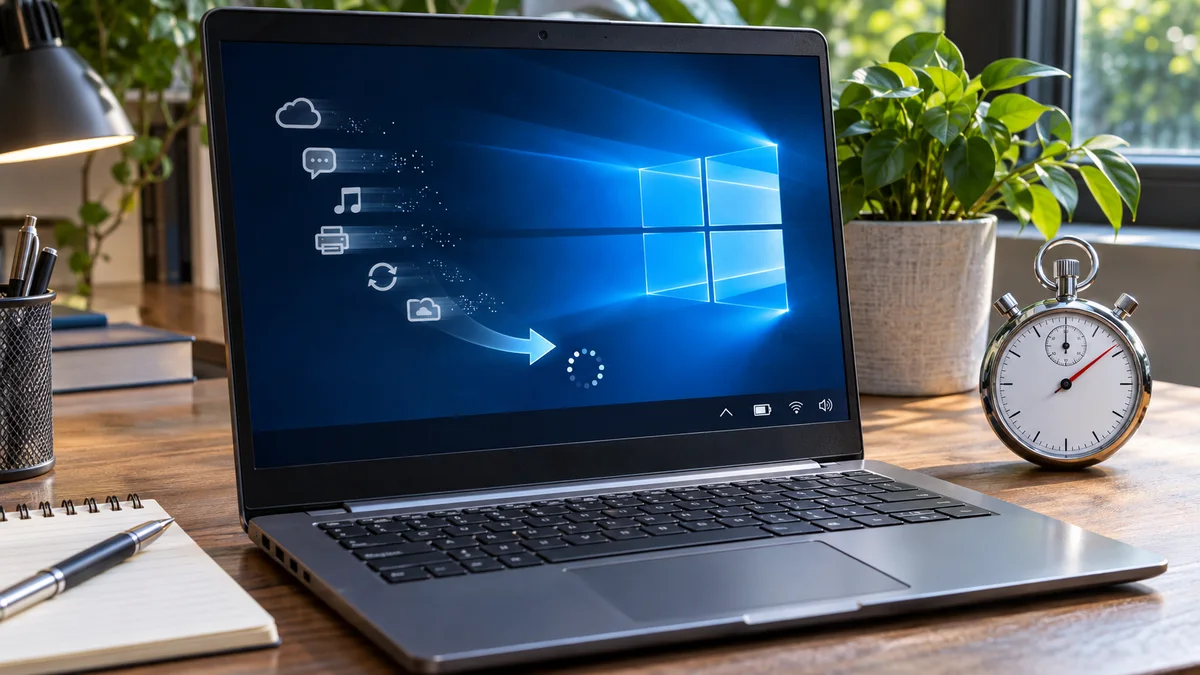
My Slack was blowing up with notifications, and our executive tech sync for the upcoming product release was scheduled to start in literally five minutes. I slammed the lid of my laptop open at my desk in our Manhattan office, only to watch the Windows 10 login screen freeze for a agonizing three minutes while loading twenty different background utilities I never asked for. If you have ever stared at a spinning circle while your CPU fan roars like a jet engine right before a critical meeting, you know the exact brand of panic I was feeling.
Let’s fix this right now so it never happens to you again. You can reclaim your boot time in less than a minute.
Why Your Windows 10 Boot Time Crawls to a Halt
Before we jump into the quick fix, let’s look at why your machine behaves like it’s dragging an anchor every time you turn it on.
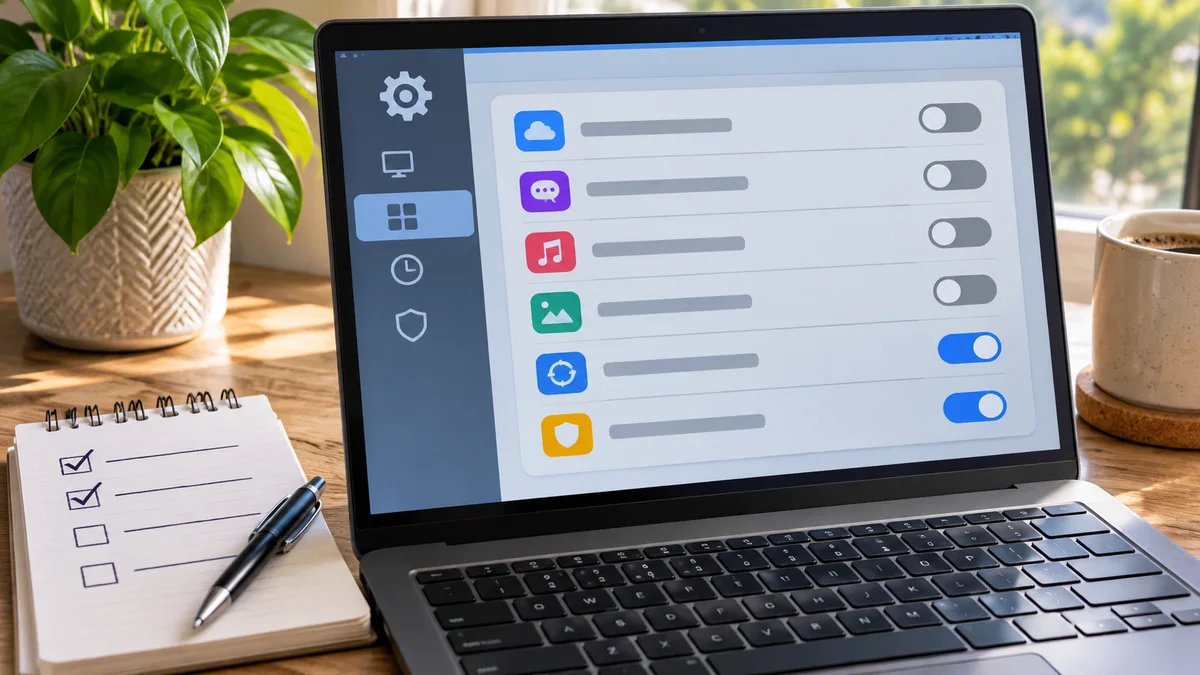
- The Silent Background App Invasion: Every time you install software like Discord, Spotify, or various enterprise chat tools, they quietly hook themselves into your Windows startup sequence. They set themselves to auto-launch so they are “ready,” but in reality, they just clog your RAM and CPU during the critical boot phase.
- Resource Contention on HDD and SSD: Even if you are running a solid-state drive, throwing dozens of background sync tools, update checkers, and helper apps at the startup queue creates an intense input-output bottleneck. The system wastes valuable seconds deciding which process gets disk priority.
- Outdated Startup Management Habits: Many users still think they need to run third-party optimization suites or mess with the old
msconfigutility. Windows 10 has a modern, streamlined built-in tool that lets you manage this cleanly without downloading sketchy software.
Step-by-Step: The 1-Minute Startup Cleanup
We are going to use the native Windows Task Manager. No command line, no extra downloads, just pure, direct OS management.
Step 1: Open Task Manager
Press Ctrl + Shift + Esc simultaneously on your keyboard. If the Task Manager opens in its compact view, click More details at the bottom of the window to expand the full dashboard.
Step 2: Navigate to the Startup Tab At the top menu of the Task Manager window, look across the tabs (Processes, Performance, App history) and click on Startup.
Step 3: Sort and Disable Unnecessary Apps You will see a list of applications that launch automatically when Windows starts. Look at the Startup impact column.
- Right-click any app marked as High impact that you do not need running the second your computer turns on (for example: Steam, Epic Games Launcher, Adobe updater helpers, or unneeded chat clients).
- Select Disable.
Expert Advice for Long-Term System Health
Disabling startup programs may help when those apps contribute to the delay, but other causes are possible. Check the list again if the delay returns; the amount of improvement depends on the apps and hardware.
| Startup item | Keep it enabled when | Check before disabling |
|---|---|---|
| Security, VPN, or company-managed tools | Needed for protection or workplace policy | Ask your IT team if you are unsure |
| Cloud sync or backup | Files need to sync or back up automatically | Check whether delaying startup would affect that task |
| Optional chat or game launchers | You are comfortable opening them manually | Confirm the app name and publisher first |
Frequently Asked Questions
Will disabling a program in Startup prevent me from using it later? No. Disabling an app from starting automatically simply means it won’t run in the background from the moment you turn on your PC. You can still open and use the application normally by clicking its desktop icon or searching for it in the Start menu whenever you actually need it.
What does “Startup impact” mean in Task Manager? Task Manager labels startup impact as High, Medium, Low, or Not measured based on the app’s startup CPU and disk use. Treat the label as a clue, not an instruction: review the app name and publisher, and disable only items you know you do not need at sign-in.
Can I do this on Windows 11 as well? Yes. In Windows 11, press Ctrl + Shift + Esc and open the Startup apps tab in Task Manager, or go to Settings > Apps > Startup. Labels and layout may vary slightly by Windows version.
At a glance
When Windows feels slow, record the CPU, memory, and disk processes in Task Manager before disabling services.
Compare the same workload after one change, and restore it if it does not help.