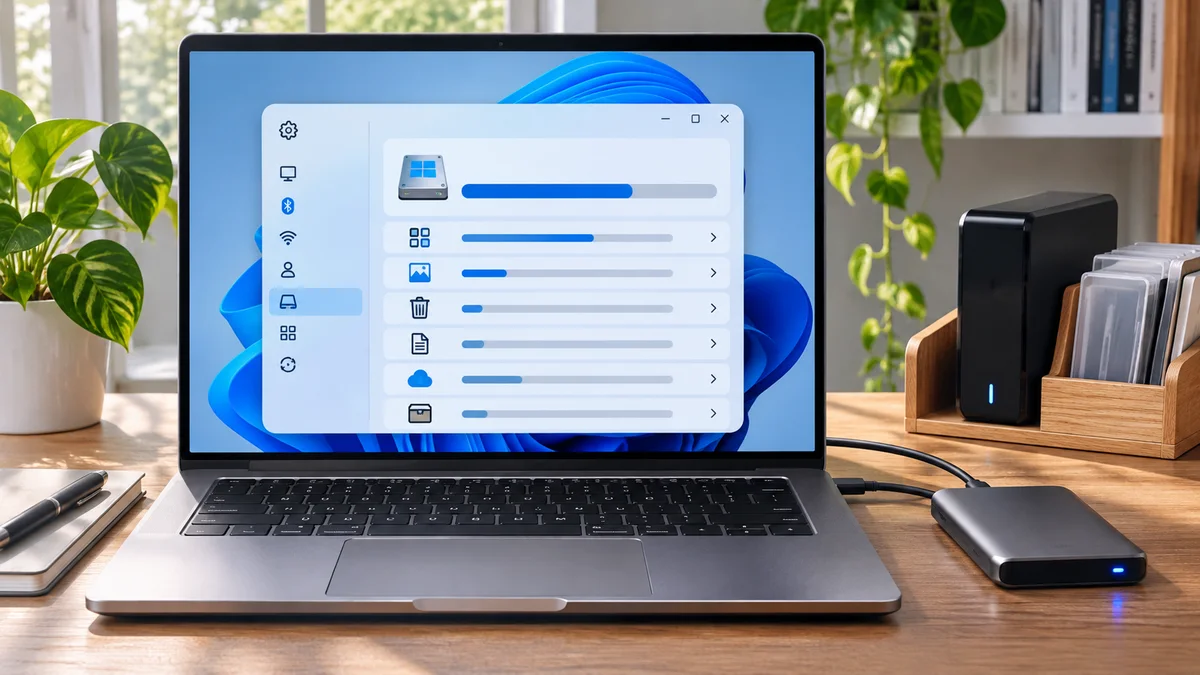
Slack lit up during a tense project meeting, and my Windows 11 PC showed almost no free space on C:. Visual Studio would not compile, and a Docker task stopped with a storage error. A colleague pointed at the largest folder in Explorer: “Delete that one.” I paused. A folder can look expendable and still contain settings or work files. The safer first move is to see how Windows classifies the space, review each item, and remove only what is no longer needed.

Why Your Windows 11 C Drive Fills Up So Fast
Before we fix the issue, let us look at the structural architecture of how Windows 11 handles background data. Understanding these three primary bottlenecks prevents you from accidentally deleting files you actually need.
| Storage Bottleneck | Root Cause | Safe to Delete? |
|---|---|---|
| Temporary files | Caches left behind by IDEs, web browsers, and installers. | Review in Settings; do not delete blindly. |
| Windows Update Residuals | Update cleanup and previous Windows installation files appear as separate categories. | Review each category; deleting a previous installation removes rollback. |
| Hibernation & Page Files | Hibernation and paging files have different purposes and sizes. | Do not resize or move the page file just to free space. |
Step-by-Step Resolution: Reclaiming Gigabytes on Windows 11
Follow these exact steps using official Windows 11 administrative utilities to safely purge junk data without breaking your workflow.
Step 1: Run Windows 11 Storage Sense (The Modern Approach)
Skip third-party applications. Windows 11 has a robust built-in tool designed specifically for this.
- Press
Windows Key + Ito open Settings. - Navigate to System > Storage.
- Toggle Storage Sense to On, then click directly on the Storage Sense text menu to configure it.
- Click Temporary Files and let the system scan your drive.
- Check the boxes next to Windows Update Cleanup, Previous Windows installations, and Temporary files.
- Click Remove files.
Step 2: Review temporary files in Windows Settings Avoid selecting everything in a Temp folder and deleting it by hand. Applications may still be using temporary files, and a folder can contain items you did not intend to remove. Open Settings > System > Storage > Temporary files or Cleanup recommendations, then review the descriptions before selecting anything. Leave Downloads unchecked unless you have reviewed its contents; it can contain personal files. Skip any category you do not understand.
Step 3: Clean Up Component Store (WinSxS) via Terminal If you are a developer or power user, your Windows Component Store accumulates years of obsolete system packages. We can safely prune them using an elevated Command Prompt.
- Right-click the Start menu and select Terminal (Admin) or Command Prompt (Admin).
- Type the following command and press Enter:
DISM.exe /Online /Cleanup-Image /StartComponentCleanup - Wait for the process to finish. Use this command only when component-store cleanup is relevant; it is not a general-purpose way to remove files from Windows folders.
Expert Warning & Best Practices
C:\Windows\System32 or WinSxS. Use Windows cleanup tools and review their listed categories before confirming.To prevent your C drive from filling up unexpectedly during critical work hours, establish these habits:
- Relocate Default Libraries: Move your Documents, Downloads, and Desktop folders to a secondary data drive (D: or E:) if you have one.
- Docker and IDE storage: Review the application’s own storage settings and identify which data can safely be removed. Do not delete virtual-disk or cache files by hand.
- Monitor with TreeSize Free: Install a trusted visual storage analyzer like TreeSize (run as administrator) to instantly spot which folders are consuming your disk space.
| Check or choice | Guidance in this article |
|---|---|
| Step 1 | Press Windows Key + I to open Settings. |
| Step 2 | Navigate to System > Storage. |
| Step 3 | Toggle Storage Sense to On, then click directly on the Storage Sense text menu to configure it. |
Frequently Asked Questions (FAQ)
Is it safe to delete everything inside the %temp% folder? Do not assume every item can be removed without affecting an application or current task. Use Windows Settings to review temporary-file categories, close apps first, and leave anything you do not recognize unchecked.
Why is my C drive still full after deleting temporary files? If your drive remains full, check Storage settings for large apps and files. The size of hiberfil.sys and pagefile.sys varies with settings; do not reduce or move the page file just to gain space. Review the Recycle Bin before emptying it.
Can I disable hibernation to free up C drive space? Disabling hibernation removes the Hibernate feature and can also affect Fast Startup; the space recovered varies by device and settings. Do not run powercfg -h off unless you understand and accept those changes. Review Windows Storage settings first, and ask your administrator if this is a managed PC.
At a glance
Review Windows Storage categories before removing files, and leave Downloads unchecked until you inspect it.
Use built-in cleanup tools for temporary files and component-store maintenance; do not delete Windows folders by hand.